
9 VPN Features That Earn Their Place During Failure
- 1. Auto-Connect Has to Win the Race
- 2. A Kill Switch Earns Its Name During Failure
- 3. Always-On Moves the Rule Below the App
- 4. Split Tunneling Creates Two Truths
- 5. Local Access Opens a Side Door on Purpose
- 6. Custom DNS Chooses a Different Observer
- 7. Blocking Lists Miss and Misfire
- 8. Multi-Hop Adds an Observer and a Delay
- 9. Obfuscation Changes Recognition, Not Trust
- Keep Fewer Switches—and Better Evidence
The VPN can fail before you touch Connect. Your laptop wakes on hotel Wi-Fi, mail starts syncing, and the app needs three more seconds to build its tunnel. The useful features aren't the flashy ones. They're the controls that decide what happens in those three seconds.
Without the VPN, the hotel sees direct connection metadata and the services your apps contact; destinations see the hotel's public IP. With a full-device VPN, the hotel sees an encrypted connection to the VPN server, the provider can observe destination IPs plus timing and volume, and destinations see the server's IP.
But only covered traffic gets that route. Every feature below changes coverage, timing, or failure behavior, so treat the switch as a claim to test—not a decoration to collect.
1. Auto-Connect Has to Win the Race
Auto-connect can start the VPN when the device boots, wakes, or joins an unfamiliar network. Its job is to remove the moment when background apps get online before you remember the tunnel.
Test the trigger instead of admiring the setting. Reboot on home Wi-Fi, join a phone hotspot, close and reopen the lid, and connect to a network with a captive portal. Watch when the public IP changes and whether any app connects first.
A “trusted network” exception deliberately leaves traffic direct. On that network, the operator or ISP sees the destination connections and sites see the normal public IP. Decide whether that convenience is worth giving up the VPN route there.

2. A Kill Switch Earns Its Name During Failure
A kill switch should block covered traffic when the tunnel drops. Without it, the operating system may return to the ordinary route and expose the ISP-assigned public IP before the VPN app catches up.
Start a harmless repeating request, disconnect the VPN unexpectedly, change Wi-Fi, sleep and wake the device, and close the app. The useful result is silence until the tunnel returns—not a settings page with an impressive label.
Then test recovery. A strict block can leave the device offline until the VPN reconnects or you deliberately disable the rule. Know that path before a meeting or boarding pass depends on it.
Our kill-switch guide walks through the failure states that a stable green connection never reveals.
3. Always-On Moves the Rule Below the App
Android's always-on VPN can start a chosen VPN when the device boots and keep it running while the device or work profile is active. Its separate “Block connections without VPN” control can deny traffic that doesn't use the approved route.
Google's Android Enterprise VPN guidance also documents per-app allowlists and exclusions. That creates an important edge: with blocking enabled, a deliberately excluded app may lose network access instead of going direct.
Test emergency apps, system updates, tethering, local devices, and captive portals before relying on lockdown behavior. A system-level rule is stronger than a reminder, but it can also make a broken VPN feel like a broken phone.
A travel router can put devices without native VPN controls behind one managed tunnel. It moves the feature decisions to the gateway, so label its direct mode, update the firmware, and test what happens when the tunnel is down.
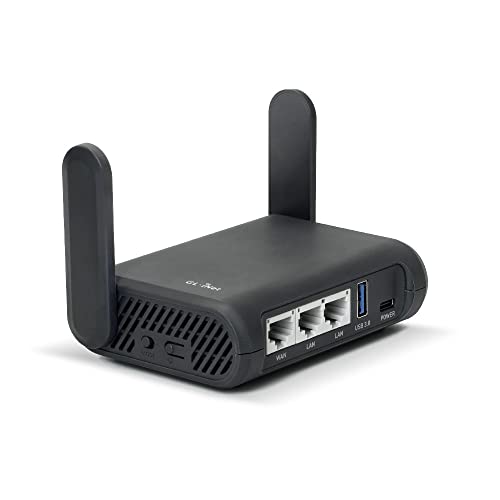
- Turns a wired or public wireless connection into a network shared by your own devices
- Includes WireGuard, OpenVPN, policy routing, and an optional VPN kill switch
- Runs OpenWrt and supports network storage, encrypted DNS, guest Wi-Fi, and AdGuard Home
The router doesn't turn a television app into an always-on VPN client. It becomes the tunnel endpoint for the network behind it, with its own routes, DNS, and failure states to verify.
4. Split Tunneling Creates Two Truths
Split tunneling sends selected apps or destinations outside the VPN while covered traffic stays inside, or reverses that arrangement. It can keep a printer, banking app, work service, or latency-sensitive game working without disconnecting everything.
Follow both paths. An excluded banking app connects through the ordinary network, so the local operator sees that service connection and the bank sees the normal public IP. The VPN provider sees none of that traffic. A covered browser goes to the VPN server, so the local operator sees the tunnel, the VPN provider forwards the traffic, and the website sees the VPN exit IP.
The exception works because the VPN doesn't protect that traffic.
Keep the list short, name the reason for every entry, and retest after an app update. Excluding a whole browser to fix one site also excludes every other tab. See the full route in our split-tunneling guide before turning convenience into a silent bypass.
5. Local Access Opens a Side Door on Purpose
Some VPN configurations isolate the device from printers, casting receivers, storage boxes, development devices, and smart-home controls. A local-network toggle can restore those nearby connections without sending all internet traffic outside the tunnel.
That local exception isn't harmless everywhere. On home Wi-Fi, reaching your printer may be useful. On an airport network, accepting unsolicited contact from nearby devices is usually a problem you don't need.
Enable local access only on networks you trust, then test both a local device and a public IP check. Make sure the printer stays local while internet traffic keeps the route you intended.
6. Custom DNS Chooses a Different Observer
DNS turns names into the addresses devices use. A VPN app may send those lookups through its tunnel to the provider's resolver, while a custom option hands them to a resolver you select.
The local network shouldn't see the clear lookup when it travels inside an encrypted tunnel, but the chosen resolver still receives the query. A browser's encrypted DNS setting may compete with the VPN or operating-system rule, so “more privacy switches” can produce a route no single dashboard explains.
Record the resolver before and after connection. Test another browser and repeat after sleep or a network change. If your baseline ISP resolver returns, investigate the browser, app, operating system, and router one controller at a time.
7. Blocking Lists Miss and Misfire
Some VPN apps can refuse connections to known advertising, tracking, phishing, or malware domains. DNS- or tunnel-level filtering can help apps that don't support browser extensions and may reduce nuisance traffic across the device.
The list can't recognize every new threat, and a false positive can break a login, checkout, or update. Find the allowlist before enabling aggressive blocking. Never use the feature as a substitute for software updates, unique passwords, or careful approval of downloads.
Test one known benign domain the filter should block and one essential service it must leave alone. If the service fails, pause the filter before you start rewriting DNS and VPN protocols at the same time.
8. Multi-Hop Adds an Observer and a Delay
Multi-hop sends traffic through two VPN servers. The first server receives your connection, the second presents the exit IP to destinations, and the path between them adds another route segment.
That can fit a specific threat model, but “two servers” doesn't mean twice the privacy. The provider may operate both, latency usually rises, and account or browser identifiers still reach the destination.
Compare one-hop and multi-hop routes on the same device, network, and workload. Keep it only if you can name the risk it changes and accept the performance and troubleshooting cost.
9. Obfuscation Changes Recognition, Not Trust
Obfuscation tries to make VPN traffic harder for a network filter to recognize. It can help when an authorized network blocks standard VPN protocols, but it doesn't strengthen a reused password or make a signed-in user anonymous.
The extra layer may cost speed and may be unavailable with other features. Use the normal protocol when it works, follow the network's policy and local law, and enable obfuscation only for a real connection problem.
Network-wide VPN, DNS, and filtering policies are easier to see when one capable gateway owns them. They're also easier to break for every device at once. If you centralize those features at home, keep a configuration backup and a tested direct route.

- Runs UniFi Network management for a consolidated view of devices, traffic, and gateway settings
- Combines gigabit routing, intrusion detection and prevention, and multi-WAN support in a compact console
- Manages separate UniFi access points rather than broadcasting Wi-Fi on its own
The gateway isn't a magic privacy upgrade. It gives you a place to inspect and enforce routes; you still own the rules, updates, exceptions, and failures.
Keep Fewer Switches—and Better Evidence
Turn on one feature at a time. Reboot, sleep, change Wi-Fi, print locally, join a call, and run IP and DNS checks after each change. When something breaks, reverse the last controlled step instead of rebuilding the whole stack.
The best hidden VPN feature is the one that prevents a failure you can reproduce. If you can't explain which traffic it changes, who gains visibility, and what happens when it stops working, leave the switch off until you can.