
VPN Kill Switch: The Test Starts When the Tunnel Dies
- The Ordinary Route Is Waiting Underneath
- App-Level Protection Leaves the Rest of the Device Moving
- System-Level Blocking Makes a Wider Promise
- Reactive and Persistent Modes Fail at Different Times
- Test With Harmless Traffic and an Expected Answer
- Sleep and Handoffs Find the Quiet Leaks
- IPv4, IPv6, and DNS Need the Same Failure Test
- Split Tunneling Changes What “Blocked” Means
- Local Traffic Is a Separate Decision
- Competing Controls Can Make the Block Look Random
- Force Failure Before Failure Chooses the Moment
The VPN doesn't need to fail for a minute. One second is enough. Wi-Fi changes, the tunnel drops, and the operating system finds the ordinary route before the app recovers. A kill switch has one job: make that shortcut lead nowhere.
Start on hotel Wi-Fi with a full-device VPN. The hotel sees an encrypted connection to the VPN server, the provider can observe destination IPs plus timing and volume, and a website sees the server's public IP alongside its account and browser signals.
Now interrupt the tunnel without a kill switch. The covered browser request falls back to the direct connection: the hotel sees the website connection, the VPN provider receives no browser request after its tunnel dies, and the website sees the hotel's public IP. HTTPS may still protect page contents in transit, so the consequence depends on the threat model and whether exposing that route, destination, and address matters.
With a working kill switch, the covered browser request stalls instead. The hotel receives no direct website connection, the VPN provider receives no browser request until the tunnel reconnects, and the website receives nothing during the gap. Permitted local or recovery traffic may still move if the product's rules allow it.
That's the comparison to test. A green shield during a stable session can't answer it.
The Ordinary Route Is Waiting Underneath
Wireless interference, a server reset, app crash, device sleep, protocol error, or move between networks can interrupt a VPN. The underlying internet connection may remain healthy, so the operating system does what it's designed to do: keep traffic moving.
That convenience becomes a privacy failure when mail, a download, peer-to-peer traffic, cloud sync, or a browser session continues outside the tunnel. The interruption may end before the status icon changes long enough for you to notice.
A kill switch blocks that ordinary route. The important questions are what it blocks, when the block starts, and how you get online again without creating a permanent exception.

App-Level Protection Leaves the Rest of the Device Moving
An app-level kill switch closes or blocks selected programs when the VPN fails. It can leave ordinary internet access available for other tasks, which may be exactly what you want.
But every program missing from the protected list can continue directly. If your browser stops while a cloud client keeps syncing, the feature hasn't failed; its scope was narrower than your assumption.
List the apps that matter before testing. Include background helpers, launchers, and update processes when the provider says they're separate. Test the protected app and one unprotected app side by side so the boundary is visible.
System-Level Blocking Makes a Wider Promise
A system-level kill switch blocks network traffic more broadly until the tunnel returns. Providers may call stricter versions lockdown, network lock, always-on, or advanced protection. Names don't define behavior.
Android, for example, documents an always-on VPN plus a separate “Block connections without VPN” setting. Google's Android Enterprise guidance explains that the block can deny apps outside an allowed VPN list rather than letting them go direct.
That stronger default is easier to reason about when nothing should leave unprotected. It's also easier to mistake for broken internet when the VPN can't connect.
A wired VPN gateway can apply one routing and failure policy to devices behind it. That helps with televisions or other equipment without a native kill switch, but the gateway becomes another endpoint whose direct fallback, DNS, and update process need testing.

- Sits on a wired network as a dedicated gateway for OpenVPN or WireGuard traffic
- Can run VPN client and server roles together for remote access and protected outbound browsing
- Has no Wi-Fi radio, making it best for pairing with an existing router or access point
The hardware doesn't inherit the VPN provider's app controls automatically. Confirm which clients use the gateway and what the router does when its tunnel dies.
Reactive and Persistent Modes Fail at Different Times
A reactive kill switch wakes only after an established VPN connection drops. Restart the device, never open the VPN, and ordinary traffic may work because there was no protected session to lose.
A persistent mode blocks whenever the VPN is inactive, including startup and the period before the first connection. That's stronger for a device that should never use the normal route.
Test both moments. Reboot and try harmless traffic before opening the app. Then connect, force a documented disconnect, and try again. If the two results match, you've learned more than the mode's name could tell you.
Test With Harmless Traffic and an Expected Answer
Save work that depends on the network. Record the normal public IP, enable the kill switch, connect to a VPN server, and confirm the VPN exit IP.
Open a page that refreshes the public IP or run a harmless repeating network request. Interrupt the VPN using a provider-documented method. During the gap, the normal IP shouldn't appear; the request should stop until the tunnel reconnects or you deliberately disable the protection.
Don't test with a sensitive upload, private message, or live work session. You want a clear routing result without turning a failed experiment into a disclosure.
Run the test more than once. A server switch, app crash, and complete network-interface change exercise different parts of the operating system and client.
Sleep and Handoffs Find the Quiet Leaks
Close the laptop lid, wait, wake it, and watch the first request. Move from Wi-Fi to Ethernet. On a phone, switch between Wi-Fi and mobile data while the VPN is connected.
A tunnel can look perfect after it settles and still leak during the handoff. Record the first public IP and resolver that answer, not only the result thirty seconds later.
Restart the device if you expect persistent protection. Test before login where practical, after login, and before manually launching the VPN app.
A travel router can give several devices one tested tunnel on hotel Wi-Fi. It can also make one fail-open rule everyone's problem. Label direct and VPN modes, update it before travel, complete the captive portal, and rehearse the recovery path at home.
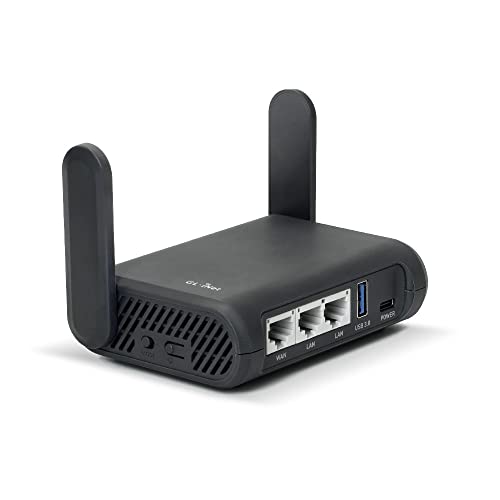
- Turns a wired or public wireless connection into a network shared by your own devices
- Includes WireGuard, OpenVPN, policy routing, and an optional VPN kill switch
- Runs OpenWrt and supports network storage, encrypted DNS, guest Wi-Fi, and AdGuard Home
The travel router doesn't replace device-level testing. A phone may leave its Wi-Fi, switch to cellular, and bypass the router entirely.
IPv4, IPv6, and DNS Need the Same Failure Test
The control should cover IPv4, IPv6, and DNS traffic that would otherwise use the ordinary route. A public-IP check can stay quiet while a resolver request escapes somewhere else.
Run IP and DNS checks after reconnection as well as during the outage. A kill switch may stop traffic correctly while disconnected, then restore a route with an IPv6 or DNS leak when the tunnel returns.
Don't disable IPv6 blindly because a test shows an unfamiliar address. Establish whether it belongs to the direct connection or the intended VPN path, then use the provider's supported configuration.
Split Tunneling Changes What “Blocked” Means
An app deliberately excluded from the VPN may also be excluded from the kill switch. That can be correct behavior.
Follow both paths. The excluded app uses the ordinary network, so the local operator sees its service connection, the VPN provider receives none of that direct traffic, and the destination sees the normal public IP. While a covered app is connected, the local operator sees the tunnel, the provider forwards the traffic, and the destination sees the VPN exit IP. During VPN failure, the local network receives no direct service request from that covered app, the provider receives no app request until reconnection, and the destination receives nothing.
Test one included app and one excluded app together. Then inspect DNS, because application and name-resolution paths may not follow the same boundary. Our split-tunneling guide explains why one connected icon can hide two routes.
Local Traffic Is a Separate Decision
Some kill switches allow printers, casting receivers, storage, or other local devices while blocking the public internet. Others isolate the device completely.
On a trusted home network, a narrow local exception may be useful. On public Wi-Fi, local isolation reduces unnecessary exposure to nearby devices. Don't widen the rule simply because one printer disappeared.
Test a local address and an internet destination separately. If the documentation doesn't describe local behavior, ask support before building a workflow around it.
Competing Controls Can Make the Block Look Random
Another VPN, firewall, security suite, custom DNS tool, battery saver, or managed profile may compete for the same routing and firewall controls. Stacking exceptions usually makes the result harder to explain.
Change one component at a time. Allow only the background permissions the VPN provider documents. Preserve managed work settings and take repeatable evidence to the administrator instead of disabling policy.
When support asks what failed, give the device, operating system, app version, VPN server, protocol, network type, and exact transition. “The kill switch is broken” is a conclusion. “My home IP appears for one refresh after macOS wakes on this Wi-Fi” is evidence.
Force Failure Before Failure Chooses the Moment
Test after major VPN, router, and operating-system updates. Keep the stricter mode only if you know how to recover without creating a forgotten bypass.
A kill switch can't stop phishing, protect an unlocked device, or cover traffic you deliberately excluded. It can do one important thing: when the VPN route disappears, it can stop the traffic instead of quietly changing who sees it. Make it prove that before you trust the badge.