
Split Tunneling Draws a Line Through Your Device
- One Laptop Can Make Two Very Different Trips
- Include Mode Starts With Less Protection
- App, Website, and IP Rules Don't Mean the Same Thing
- A Travel Router Moves the Border to the Network
- Local Devices May Need a Door, Not a Detour
- DNS Can Cross the Border Differently
- The Kill Switch Protects the Route It Controls
- A Home Router Can Make the Rule Visible
- Build One Exception You Can Prove
Split tunneling draws a border through one device. Your work browser can use the VPN while your banking app takes the ordinary connection. Same laptop, two routes, and two visible IP addresses. One setting decides which observer sees which trip.
That can fix a stubborn bank, printer, game, or video call without disconnecting the VPN. It can also send sensitive traffic outside the tunnel while the green VPN icon stays lit. The feature isn't a weaker kind of encryption. It's a routing exception, and the exception needs a name.
One Laptop Can Make Two Very Different Trips
Maya opens her laptop on hotel Wi-Fi and connects the VPN. In full-tunnel mode, the operating system feeds covered traffic from her browser and banking app into the encrypted tunnel. The hotel network sees one encrypted connection to the VPN server, plus timing and volume. The VPN receives the traffic and forwards it. Both destinations see the VPN server's IP address.
Now Maya excludes the banking app with split tunneling.
The browser still enters the tunnel. The hotel sees its encrypted connection to the VPN server. The VPN handles the browser request, and the work site sees the VPN exit IP.
The banking app takes the ordinary route. The hotel and its internet provider can see a direct connection to bank infrastructure, though HTTPS still protects the secure session's contents. The VPN never carries that connection. The bank sees the hotel's public IP instead of the VPN's.
The bank works because Maya removed it from the VPN route. That isn't a leak if she chose it. It's still exposure if she chose the wrong app.

Include Mode Starts With Less Protection
Split-tunnel controls usually take one of two shapes.
In exclude mode, supported traffic uses the VPN by default. Maya names the apps, sites, or addresses that may bypass it. Install a new app tomorrow and it normally starts inside the tunnel.
In include mode, ordinary routing is the default. Only named traffic enters the VPN. A new app starts outside until Maya adds it.
Include mode can isolate one work tool or download client. Exclude mode is the safer general default because the protected side grows automatically. Neither label guarantees the same behavior across providers or operating systems. Android's VPN interface, for example, allows an app to define either an allowed-app set or a disallowed-app set—not both at once.
Write the rule in plain language before touching the switch: “Only the game bypasses the VPN,” or “Only the download client uses it.” If that sentence isn't clear, the route won't be clear either.
App, Website, and IP Rules Don't Mean the Same Thing
An app rule follows a named program. A website rule follows selected destinations. An IP rule follows network addresses. Those boundaries overlap, but they aren't interchangeable.
Exclude a browser and every site opened in that browser may take the direct route. Exclude one bank domain and its login, fraud-check, or media domains may still follow a different rule. Exclude an IP address and the service can move behind another address tomorrow.
Apps complicate the picture too. An updater, helper process, or background service may make its own connection. A website can call third-party sign-in and content hosts. The neat checkbox in the VPN app doesn't rewrite how the software was built.
Use the narrowest rule the app actually supports. If only one site rejects the VPN, a separate browser dedicated to that site may be easier to test than excluding your everyday browser.
A Travel Router Moves the Border to the Network
Some devices don't offer app-level split tunneling at all. A travel router can apply VPN policy to whole devices or selected destinations instead. A streaming stick can take the VPN while a work laptop stays on the hotel's ordinary route.
The GL.iNet Slate Plus supports compatible WireGuard and OpenVPN profiles, policy routing, and an optional VPN kill switch. That makes it relevant when the boundary needs to sit between devices rather than between apps on one device.
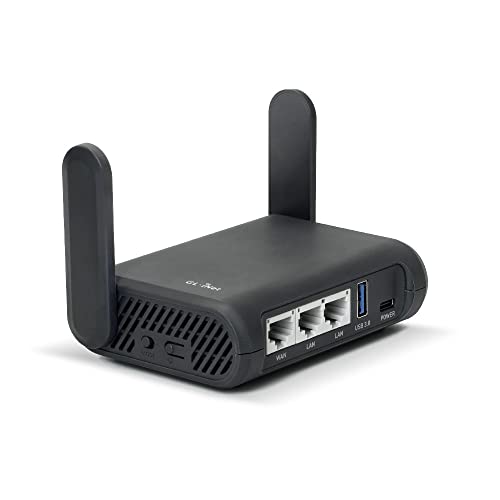
- Turns a wired or public wireless connection into a network shared by your own devices
- Includes WireGuard, OpenVPN, policy routing, and an optional VPN kill switch
- Runs OpenWrt and supports network storage, encrypted DNS, guest Wi-Fi, and AdGuard Home
Don't mistake network policy for app awareness. The router can identify a device, connection type, domain, or address according to its firmware rules. It generally can't tell which process on a laptop opened a connection. Check the current firmware, your provider's profile support, and encrypted throughput before buying.
On hotel Wi-Fi, Maya's streaming stick sends traffic to the travel router, which chooses the VPN tunnel. The hotel sees the router's VPN connection; the VPN forwards the stream; the service sees the exit IP. Her excluded laptop traffic leaves the router through the ordinary hotel connection, so the hotel sees that separate route and the destination sees the hotel's public IP.
One router. Two paths again. The border just moved.
Local Devices May Need a Door, Not a Detour
A VPN can make a printer, casting receiver, file server, or smart-home controller appear missing. Split tunneling can restore access, but it may be more permission than the problem needs.
First look for an “allow LAN connections” or local-network setting. That can open access to private addresses without sending an entire browser or media app outside the VPN. The exact behavior varies by platform, so test the printer and an internet destination separately.
On an untrusted network, local access has a cost. Other nearby devices may occupy that same network. Turn the permission off when the printer session ends, and don't enable broad local discovery merely because casting failed once.
DNS Can Cross the Border Differently
Typing a domain name usually triggers a DNS lookup before the connection starts. In a split setup, protected and excluded traffic may not use the resolver you expect. The VPN app, operating system, browser, encrypted-DNS setting, and route rule can all affect the result.
That doesn't make every mixed result a leak. An excluded app is supposed to use an ordinary route. The test is whether the observed resolver and public IP match the boundary you intended.
Run the DNS leak test and IP leak test from a protected browser first. Then repeat from a deliberately excluded browser or app if it can display those results. Record both. “VPN connected” isn't a test result.
The Kill Switch Protects the Route It Controls
A kill switch is meant to stop protected traffic from falling back to the normal connection when the VPN drops. An excluded app already uses that normal connection by design. Blocking it would defeat the exception.
Provider behavior still varies. Proton's current split-tunneling guide, for example, says split tunneling and its kill switch can work together on Windows, while most of its other supported platforms require choosing between them. Don't transfer that rule to another app—or even another platform from the same provider.
Force the failure yourself. Start one protected task and one excluded task, then disconnect the VPN server without quitting the app. The protected task should stop if the kill switch covers it. The excluded task may continue. Reconnect, switch Wi-Fi networks, sleep the laptop, wake it, and run the test again.
A successful test once doesn't prove every transition. Route failures often appear when the network changes under an already open connection.
A Home Router Can Make the Rule Visible
For a permanent home split, a faster router can keep policies in one place instead of scattering exceptions across televisions, consoles, and laptops. The GL.iNet Flint 2 supports WireGuard and OpenVPN on a device-heavy Wi-Fi 6 network, while current firmware can assign VPN policies to specified devices or domain and IP lists.

- Pairs Wi-Fi 6 and dual 2.5-gigabit ports with enough capacity for a device-heavy household
- Runs WireGuard and OpenVPN directly on the router so compatible devices can share one VPN policy
- Supports AdGuard Home and OpenWrt customization, with an initial firmware update recommended
That central view helps, but it raises the blast radius. A bad laptop rule affects one laptop. A bad gateway rule can reroute a household. Save the working configuration, update firmware before building policies, label every exception, and check the tunnel and enhanced kill-switch settings separately.
Measure before assuming the bypass is faster. Distance, server load, Wi-Fi quality, routing, and the destination can matter more than encryption overhead. Run the same real task several times through each path. Keep the exception only if it solves the named problem.
Build One Exception You Can Prove
Start with full-tunnel mode. Confirm the VPN IP and DNS path. Add one exclusion. Reconnect the VPN, fully restart the affected app, and confirm that its public IP changes while the protected path does not.
Then test local devices, account sign-ins, sleep and wake, a network switch, and a forced tunnel failure. Write down the result beside the rule. Major VPN and operating-system updates deserve the same short retest because routing permissions change.
Return to full-tunnel mode when you can't verify the routes, every connection needs equal protection, the task is high-risk, or a managed-device policy controls networking.
Remove exceptions whose reason has expired. A game installed for one weekend doesn't need a permanent hole. A bank that now accepts the VPN doesn't need its own route forever.
Split tunneling is precise when the rule is small, named, and tested. Without that discipline, it isn't two clever routes. It's one device telling two different privacy stories—and leaving you to guess which one is true.