
How to Use a VPN With Roku—and Prove the Route
- Decide Whether Roku Needs the Tunnel at All
- “VPN Support” Must Mean VPN Client
- Build the Tunnel Before Roku Joins It
- Join Roku to the Protected Network
- Prove the Route With Three Views
- Smart DNS Isn't a Smaller VPN
- Stream Long Enough to Expose the Weak Route
- Account Country and Network Location Are Separate
- Selective Routing Keeps the Rest of the Home Stable
- A Shared Hotspot Works Only While the Computer Does
- Hotel Roku Has a Portal Problem Before a VPN Problem
- Troubleshoot the Layer That Actually Failed
- Keep the Route Explainable
Roku doesn't give you a normal VPN app to install. The network has to do the work before traffic reaches the player or television. Put the tunnel on a router or shared hotspot, then prove Roku joined the protected route. A successful “Check connection” screen proves internet access—not the VPN.
Start a stream on Roku through the ordinary home network.
Roku sends the connection to the router, which passes it to the ISP on the ordinary route. The VPN provider receives none of that traffic. HTTPS may protect video and account contents in transit, while the ISP can still see useful connection metadata and destination IPs. The streaming service sees the home's public IP plus the Roku account, channel account, device, and app signals.
Now assign Roku to a VPN route on the router.
Roku sends the connection to the same router, which puts covered traffic inside the encrypted tunnel. The ISP sees the connection to the VPN server instead of the same streaming destination. The VPN provider handles the next hop. The streaming service sees the server's public IP—but it still gets the same accounts, device, and app signals.
Different network address. Same Roku.
Decide Whether Roku Needs the Tunnel at All
A router-level VPN can hide covered destinations from the ISP or hotel network upstream of that router and replace the public IP seen by streaming services. The router creating the tunnel still receives Roku's traffic first. The setup can also add distance, encryption overhead, and another system that can fail.
If the task lives on a phone or laptop, use the native VPN app there. Changing Roku's whole route for a job Roku isn't doing creates work without protection.
Name the goal. Protecting traffic on a network you don't control is different from changing an IP-based location estimate. Neither goal rewrites the Roku account, grants a subscription, or overrides a service's regional rights.
Use the VPN only when the route itself needs to change. The rest of the setup becomes much easier to judge.

“VPN Support” Must Mean VPN Client
Check the router manual for VPN client support. That means the router can initiate a tunnel and send selected devices through it.
VPN passthrough only lets another device create its own VPN connection. Roku can't turn that feature into a client. VPN server mode accepts incoming connections to the home network; it doesn't automatically send Roku out through a privacy provider.
Confirm that the router and provider share a supported protocol. Download profiles only from the provider's verified account or documentation. Save the current router configuration before changing it.
If the router supports device policy, plan a Roku-only route. Sending the entire home through the same streaming path can change banking, work, smart-home, and gaming connections for no useful reason.
Build the Tunnel Before Roku Joins It
Update the router, import one official VPN profile, and choose a nearby server for the first test.
Connect a laptop to the protected router policy. Confirm that it shows the VPN public IP. Put a second device outside the policy and confirm that it keeps the home IP.
That pair proves the router can maintain two deliberate routes. If both devices show the same unexpected address, don't add Roku yet.

- Pairs Wi-Fi 6 and dual 2.5-gigabit ports with enough capacity for a device-heavy household
- Runs WireGuard and OpenVPN directly on the router so compatible devices can share one VPN policy
- Supports AdGuard Home and OpenWrt customization, with an initial firmware update recommended
Flint 2 can run compatible OpenVPN or WireGuard profiles and apply policy to devices behind it. The hardware doesn't choose the right Roku, server, or failure rule for you. Give the player a stable reservation or clearly named policy so the route doesn't move when a local address changes.
Join Roku to the Protected Network
Roku's current network path is Settings, Network, then Set up connection. Choose Wired or Wireless according to the model and network you've prepared.
Select the protected Wi-Fi name or connect the Ethernet path that leads through the VPN policy. Enter the password and let Roku complete its network setup.
Then open Settings, Network, and Check connection. Roku tests whether it can reach the local network and internet. A green result still doesn't prove the router used the VPN tunnel.
Open the router's device list. Confirm the Roku entry is on the protected policy and that traffic moves through the VPN when a stream begins.
Prove the Route With Three Views
Start with the router. Its dashboard should show the tunnel connected and Roku assigned to it.
Then create harmless Roku traffic and watch the VPN tunnel counter increase. If a supported Roku browser or channel can display the public IP, compare it with the router's VPN exit address.
Finally, test failure.
With fail-open routing, Roku goes direct when the tunnel dies: the ISP sees the streaming connection, the VPN provider receives none of that direct traffic, and the service sees the home IP. With fail-closed routing, the request stalls until the protected route returns.
Choose that behavior deliberately. A router status badge and a Roku connection check each reveal one part of the path, not the whole thing.
Smart DNS Isn't a Smaller VPN
Smart DNS can change selected name-resolution or location checks for supported services. It doesn't create the same encrypted tunnel, and it doesn't necessarily replace Roku's public IP for every connection.
Follow both routes.
With a router VPN, covered Roku traffic enters the tunnel; the ISP sees the VPN-server connection, the VPN provider forwards the traffic, and the service sees the VPN public IP. With Smart DNS, Roku keeps the ordinary internet route while the Smart DNS provider receives supported name lookups and may relay selected service traffic, depending on its design. The ISP still carries the direct service connections, and destinations can still see the home public IP unless that particular traffic is relayed.
Use Smart DNS only when that narrower behavior matches the goal and the provider supports Roku. Save the router's original automatic DNS setting before making changes.
Our VPN-versus-Smart-DNS guide explains why a catalog change doesn't prove encryption.
Stream Long Enough to Expose the Weak Route
Play a complete high-resolution program. Watch startup time, sustained resolution, buffering, audio sync, and whether the app recovers after a pause.
Compare the same title on the direct route. If both paths struggle, investigate Wi-Fi, the internet connection, Roku storage, or the service. If only the VPN path struggles, try another nearby server or a protocol the router and provider both support.
Roku's current connection check reports network and internet reachability, signal quality, and an internet download-speed result. It recommends roughly 3 Mbps for SD, 5 Mbps for HD, and 25 Mbps for 4K, but a single download result can't expose every latency spike or congested VPN route.
Router hardware can be the bottleneck too. Test the same provider server on a capable computer. If the computer is fast and the router isn't, encryption throughput on the router deserves scrutiny.
Account Country and Network Location Are Separate
A VPN server can change the public IP a streaming service sees. It doesn't rewrite the country selected during Roku setup, the country associated with the Roku account, a channel subscription, payment details, or the channel publisher's rules.
Don't factory-reset Roku merely to chase a different catalog. A reset removes configuration and can create a new activation problem without changing what the service permits.
Check the current Roku and channel-account rules first. A channel may also block known VPN server addresses. Another server may work temporarily, but no router configuration guarantees permanent access.
Use content you're entitled to view. Technical access and permission remain different questions.
Selective Routing Keeps the Rest of the Home Stable
If the router supports policy routing, include Roku and leave unrelated devices on their normal route.
The included Roku enters the VPN: the ISP sees the tunnel, the VPN provider forwards its traffic, and the channel sees the VPN IP. An excluded phone goes direct: the ISP sees its service connection, the VPN provider receives none of it, and the destination sees the home IP.
One router can carry both paths. One “VPN connected” badge can't describe both.
Document the rule by device name and purpose. Recheck it after replacing Roku, resetting the router, or installing major firmware.
A Shared Hotspot Works Only While the Computer Does
For a temporary setup, connect a computer to the VPN and confirm its public IP. Then use the operating system's documented connection-sharing feature to share that selected route over Wi-Fi or Ethernet.
Join Roku through Settings, Network, and Set up connection. Verify the hotspot route from Roku exactly as you would verify a router.
The computer has become the gateway. It must stay powered, awake, online, and connected to the VPN. Sleep, an adapter change, or an operating-system update can break the share or alter failure behavior.
Windows 11 can share Wi-Fi, Ethernet, or cellular internet through Mobile hotspot. A VPN adapter's compatibility still depends on the client and driver, so follow the provider's current instructions and test the resulting Roku route.
Hotel Roku Has a Portal Problem Before a VPN Problem
Hotel Wi-Fi may require a captive portal before the router or shared computer can reach the internet. Confirm the venue's network name and complete only its legitimate sign-in.
A travel router can join that upstream network, create a private Wi-Fi network for Roku, and run a compatible VPN profile. It also adds another dashboard and failure point.
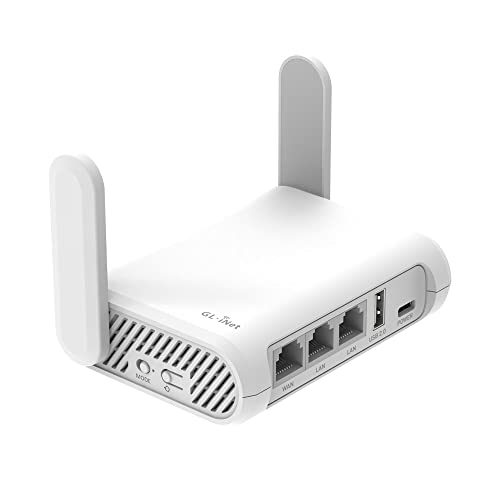
- Creates your own dual-band network from a hotel, café, Ethernet, or public Wi-Fi connection
- Includes OpenVPN and WireGuard support for compatible VPN subscriptions
- Lets you assign the side switch to VPN control after configuring it in the admin panel
Opal supports compatible OpenVPN and WireGuard connections and can repeat public or hotel Wi-Fi. Learn its direct and VPN modes before travel, and check what connected devices do when the tunnel drops.
Don't arrive with an unopened router and make the hotel television your first test. Rehearse Roku joining the router, the portal flow, public-IP verification, and failure behavior at home.
Troubleshoot the Layer That Actually Failed
Run Roku's Check connection first. If it can't reach the local network, fix the Wi-Fi password, Ethernet link, signal, or router before touching the VPN.
If Roku reaches the router but not the internet, test another device on the same protected network. Then inspect the tunnel and try another nearby server.
If the network works but one channel doesn't, test another channel. Roku's current support advice uses that comparison to separate a connection problem from an app-specific failure.
Restart only after recording the state. Update Roku under Settings, System, and System update. Factory reset is the final step, not the opening move.
Roku's current connection guide documents the check, signal results, software-update path, and wired alternative.
Keep the Route Explainable
Use a router for regular Roku coverage. Use a shared hotspot for a temporary setup. Use Smart DNS only for its narrower, non-VPN job.
After every major update, repeat four checks: Roku reaches the internet, the router tunnel is active, Roku is assigned to it, and failure follows the rule you chose.
The VPN can change Roku's network path and public IP. It can't carry an account country, subscription, license, or permission through the tunnel.
A reliable setup isn't the one with the most layers. It's the one where you can point to Roku, the gateway, the provider, and the streaming service—and explain exactly what each sees.