
VPN Not Connecting? Stop Guessing and Test the Chain
- Save the Error Before You Make It Disappear
- Prove the Internet Underneath the Tunnel
- Restart the Smallest Thing First
- Change the Server Before the Device
- Change One Supported Protocol
- Check the Account, Clock, and Waiting Prompt
- A Kill Switch Can Make Failure Look Total
- Look for Another Tool Holding the Route
- Update, Repair, Then Reinstall
- Change the Network to Split the Problem in Half
- A Travel Router Adds a Layer You Must Test
- Give Support Evidence, Not a Mystery
- A Fix Isn't Finished at “Connected”
The VPN says “Connecting.” The hotel Wi-Fi says you're online. Nothing loads. That isn't one failure—it is a chain, and the fastest fix is finding the first broken link instead of changing six settings at once.
Start with one laptop, one harmless webpage, and the exact error message.
Without a VPN, the laptop should reach the web through the hotel network. The hotel sees each direct service connection, and the website sees the hotel's public IP. With the VPN connected, covered traffic should enter an encrypted tunnel; the hotel sees the VPN-server connection, the provider handles the next hop, and the website sees the server's public IP.
If neither route works, fix the hotel connection first. If direct works and the tunnel doesn't, move one step deeper.
Save the Error Before You Make It Disappear
Take a screenshot or copy the full message. Record the time, server, protocol, app version, operating system, and network type.
“Authentication failed” points toward the account, credentials, clock, or certificate. “Server unreachable” points toward the selected endpoint, route, or network. An endless spinner may mean the app never gets far enough to show a useful diagnosis.
Don't begin with reinstalling. That can erase logs and known settings before you've learned anything.
Build a tiny test record instead:
- Direct internet: works or fails
- Another VPN server: works or fails
- Another supported protocol: works or fails
- Another trusted network: works or fails
Four answers can isolate the layer faster than a page of random toggles.

Prove the Internet Underneath the Tunnel
Disconnect the VPN and open two unrelated secure sites. Test another app too, because one broken service can look like a dead connection.
If nothing works, inspect Wi-Fi, mobile data, Ethernet, the router, or the internet service. A VPN needs a functioning underlying route before it can build a protected one.
Hotel, airport, and café networks often use a captive portal. The device may show a Wi-Fi connection while internet access waits for a browser sign-in or terms page on the ordinary route. Complete only the venue's legitimate portal, then reconnect the VPN.
Confirm the network name with the venue. Don't type a work password into a Wi-Fi portal or ignore a certificate warning because the name looks familiar.
Check a second device on the same network. If every device fails directly, the network is the likely problem. If only one fails, stay on that device.
Restart the Smallest Thing First
Quit the VPN app completely, not just its visible window. Reopen it and reconnect once.
If the route is stuck, toggle the active network interface or airplane mode, then try again. Restart the device only after the smaller reset fails.
This order preserves evidence. It also tells you which action changed the result.
Avoid clearing every network setting at once. A broad reset can remove saved Wi-Fi networks, DNS choices, work profiles, and other configuration you didn't intend to touch.
Change the Server Before the Device
The selected server may be offline, overloaded, under maintenance, or unreachable from this network. Choose another nearby server in the same country.
If the second server connects, the account, app, and underlying internet are probably working. Report the exact failed server and time instead of rebuilding the device.
If no server connects, try the provider's automatic selection. Then continue down the chain.
Don't jump to a distant server because distance sounds stronger. It adds another variable and usually more latency. Troubleshooting works best when the alternative is as similar as possible.
Change One Supported Protocol
A network can block or mishandle the protocol the app selected. Start with the provider's Automatic mode, then try one other protocol the app officially supports.
WireGuard, OpenVPN, and IKEv2/IPsec use different connection designs. OpenVPN over TCP may work on a network where UDP traffic is restricted, though it can be slower. The result tells you about compatibility, not which protocol is universally “best.”
Fully disconnect before changing the setting, then reconnect. Some clients don't apply a new protocol to an existing session.
Use only documented options. Don't paste port combinations, unofficial profiles, or obfuscation commands from a stranger. On a work, school, or restricted network, contact the administrator instead of attempting to bypass policy.
Check the Account, Clock, and Waiting Prompt
Confirm that the subscription is active and the device limit hasn't been reached. If the app's session looks expired, sign out and back in through the provider's documented flow.
Set date, time, and time zone automatically. A badly wrong clock can make certificate validation or signed authentication tokens appear invalid.
Look for a multifactor prompt, device-approval request, or verification email. It may be waiting in another app while the VPN client keeps spinning.

- Connects through USB-C or NFC, covering many newer computers and compatible phones
- Adds a phishing-resistant physical check to passkeys and supported multi-factor logins
- Works without a battery, code display, or wireless pairing process
A security key can make authentication more resistant to phishing when the provider supports it. It won't repair a blocked protocol or bad server. Register it in advance, keep a tested recovery method, and don't buy one on the assumption that every VPN account accepts it.
A Kill Switch Can Make Failure Look Total
A persistent kill switch may block the ordinary route whenever the VPN is down. That is exactly what it is supposed to do, but the result can look like “the VPN broke the internet.”
Check the app's status and the operating system's always-on VPN controls. An old profile can keep blocking connections after you switch providers or uninstall an app.
On a device you control, use the provider's documented diagnostic procedure. If it calls for temporarily disabling the kill switch, do so only for the harmless direct-connect test, then restore it immediately. Don't expose sensitive work just to prove that fallback exists.
Compare the views.
With fail-open behavior, the covered app goes direct after the tunnel dies: the local network sees the service connection, the VPN provider receives none of that direct traffic, and the destination sees the ordinary public IP. With a working fail-closed rule, the request stalls: the local network receives no direct service request, the provider receives no app request until reconnection, and the destination receives nothing during the gap.
Our VPN kill-switch guide walks through startup, handoff, DNS, IPv6, and recovery tests after the connection is stable again.
Look for Another Tool Holding the Route
A second VPN, firewall, security filter, parental-control app, custom DNS tool, or managed profile may compete for the same network extension, proxy, DNS, or filtering position.
Don't disable them all together. Record the current state and test one reversible, vendor-documented change at a time on a device you control. Restore the control after each test.
If one conflict is confirmed, use the narrow exception documented by both vendors. A permanent “allow everything” rule makes the VPN connect by creating a larger problem.
On a managed device, stop here and contact IT. Removing profiles, endpoint agents, certificates, or firewall rules can violate policy and leave the device outside its approved security state.
Update, Repair, Then Reinstall
Install the current VPN app and operating-system updates from official sources. Network extensions and drivers may need a restart before the new version is active.
Use the app's repair or reset option if it has one. Before a reinstall, save the names of custom servers, protocols, exclusions, DNS settings, and any manual configuration you'll need again.
Remove only abandoned profiles you've positively identified. Preserve the active provider profile and everything required by work or school.
A reinstall is useful when files or network components are damaged. It is not a diagnosis for an expired account, blocked server, broken Wi-Fi, or missed captive portal.
Change the Network to Split the Problem in Half
Try one other trusted connection, such as your own mobile hotspot or a home network you control.
If the VPN connects there, the original router or network is probably interfering with the protocol or server. If it fails everywhere, focus on the device, app, account, or provider.
On a router you control, restart it and install current firmware using the manufacturer's instructions. Don't broadly disable its firewall. Try the VPN's supported protocol or ask the provider which router setting is actually required.
On somebody else's network, respect the rules. A technical workaround isn't permission.
A Travel Router Adds a Layer You Must Test
A travel router can complete a hotel portal once, create a network for your devices, and run a compatible VPN profile. It can also be the broken link.
Test the laptop directly on the router without the router's VPN. Then test the router's own tunnel. This separates the upstream hotel connection from the VPN client running in the router.
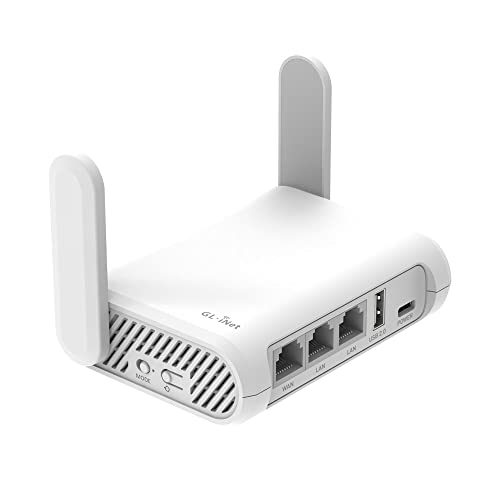
- Creates your own dual-band network from a hotel, café, Ethernet, or public Wi-Fi connection
- Includes OpenVPN and WireGuard support for compatible VPN subscriptions
- Lets you assign the side switch to VPN control after configuring it in the admin panel
If you use a device like the Opal, update it before travel, confirm its supported OpenVPN or WireGuard profile, and learn the difference between direct and VPN modes. A router kill switch can block every connected device when its tunnel fails.
Don't use a new router as an emergency purchase for tonight's unexplained app error. Diagnose the current chain first. More equipment means more endpoints, routes, and settings to prove.
Give Support Evidence, Not a Mystery
Export diagnostic logs only through the app's documented process. Review them for IP addresses, usernames, server names, or other sensitive information before sharing.
Tell support what succeeded as well as what failed:
- Direct internet worked on the same device and network.
- Server A failed while nearby Server B connected.
- Automatic worked while one named protocol failed.
- The VPN connected on a personal hotspot but not the hotel Wi-Fi.
That evidence narrows the failure without giving support a tour of every setting you've ever changed.
The U.K. National Cyber Security Centre's VPN guidance treats forced routing, split tunneling, captive portals, and failure behavior as separate design choices. Your troubleshooting should do the same.
A Fix Isn't Finished at “Connected”
Once the VPN connects, restore the kill switch and security tools one at a time. Confirm the expected public IP and DNS route. Test sleep, wake, a server change, and a network handoff if those transitions matter.
Write down the working server, protocol, network, and app version. Remove any temporary exception you made during diagnosis.
Then repeat the opening comparison. The local network should see the VPN connection, the provider should handle the covered route, and the test site should see the VPN server's public IP. If the tunnel fails, covered traffic should follow the failure policy you chose—not quietly invent a shortcut.
“Connected” is a status. A working, tested route is the fix.