
Kodi VPN Setup: Follow the Movie's Route
- Follow the Movie, Not the Marketing
- Install Kodi Before You Add Anything to It
- Put the Tunnel on the Kodi Device When You Can
- Use a Router When the Box Can't Run an App
- Connect Home When Home Is the Destination
- Make Failure Boring
- Diagnose the Buffer Before Blaming the Tunnel
- Kodi Needs a Clear Route, Not a Magic Shield
You press play in Kodi. A movie stored across the room starts buffering, and someone says you need a VPN. Stop there. A tunnel can't repair weak home Wi-Fi, a slow disk, or a struggling media box.
Kodi is a media center, not a streaming source. It can play a file on the same device, reach a library on your home network, or ask an online add-on for content. Those three paths don't meet the same network, so putting all three behind a VPN can solve one problem and create another.
Team Kodi's official VPN policy is blunt: Kodi doesn't need a VPN for its designed operation, and its forum doesn't support using one to bypass legitimate location rules. Start with the route you actually need.
Follow the Movie, Not the Marketing
Play a file stored on the Kodi device. Kodi reads it from local storage. The ISP, a commercial VPN provider, and the wider internet see no movie request because none leaves the box.
Play a file from a home server. The Kodi device talks across the local network to that server. Your router or Wi-Fi access point carries the local connection, but the ISP and a commercial VPN server still don't need to see it.
Open an official online add-on. Now Kodi reaches an internet service. Without a VPN, the local network and ISP carry the connection, and the service sees the household public IP address. With a VPN app on the Kodi device, the local network and ISP see an encrypted connection to the VPN server, the VPN provider handles the traffic at the other end, and the service sees the VPN server's address.
Same play button. Three different routes.
A commercial VPN may make sense on shared Wi-Fi or when you want to reduce ISP visibility into lawful internet traffic. A private home VPN solves a different job: reaching a network you control while you're away. Neither makes an unsafe add-on trustworthy or turns unauthorized content into authorized content.

Install Kodi Before You Add Anything to It
Get Kodi from the Kodi Foundation download page or a verified platform store. Avoid mystery boxes and “fully loaded” builds that arrive with unofficial repositories, altered settings, or content sources you didn't choose.
Kodi's official repository applies its own rules, but an add-on still connects to an outside service and runs code in the media-center environment. Check the maintainer, source, permissions, and content rights. If an offer promises every paid channel for free, the VPN logo beside it isn't a safety review.
A tunnel protects a route. Malicious code can use that protected route too.
Put the Tunnel on the Kodi Device When You Can
On Windows, macOS, Android, or another supported television platform, install the VPN provider's maintained app at the operating-system level. Connect before opening Kodi, then verify the public address and DNS route from the same device.
The app can cover Kodi plus other selected traffic and may expose protocol choice, automatic connection, and a kill switch. Its exact features depend on the provider and platform. Don't assume a desktop setting exists on an Android TV build just because the buttons share a brand.
Local discovery can fail when the VPN blocks private-network access. Suppose all Kodi traffic enters the tunnel: the home media server receives nothing because the request never reaches its local address. Allow the specific local-network route and the server receives the library request directly, while Kodi's covered internet traffic still goes to the VPN server.
That exception changes every observer's view. For the local-library request, the home router sees a local connection, the commercial VPN receives nothing, and the media server sees the Kodi device's local address. For the covered online request, the router sees the encrypted VPN connection, the VPN receives the traffic, and the online service sees the VPN address.
Use the split-tunneling guide before excluding the entire Kodi app. If only SMB, NFS, UPnP, artwork, or remote control needs local access, a narrow local-network rule is easier to understand than sending every stream direct.
Test playback, library updates, artwork, remote control, and wake behavior. They can use different connections even though Kodi presents one screen.
Use a Router When the Box Can't Run an App
A VPN client on a router or gateway can cover a Kodi box with no suitable VPN app. Assign only that device or a dedicated network to the tunnel when policy routing is available.
Follow one online request. With the device app, Kodi encrypts the request before it reaches the home router; the router forwards the tunnel, and the website sees the VPN address. With a gateway client, Kodi sends the request across your local network to the gateway; the gateway creates the encrypted tunnel, and the website can still see the same VPN address. The endpoint result matches, but the encryption starts at a different device.
Confirm that the exact router model supports the provider's protocol and configuration format. “VPN passthrough” isn't a VPN client. Check measured encrypted throughput too: a gigabit port says nothing about how quickly a small processor can encrypt video traffic.
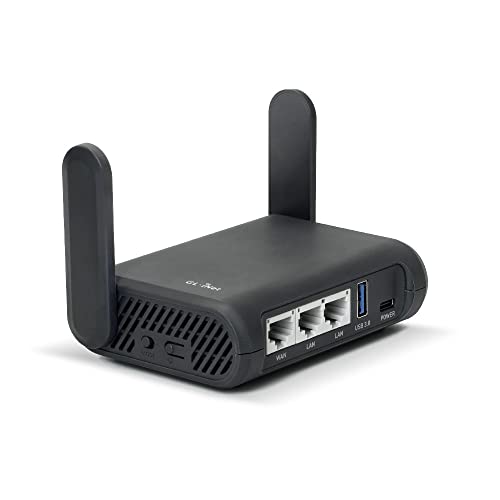
- Turns a wired or public wireless connection into a network shared by your own devices
- Includes WireGuard, OpenVPN, policy routing, and an optional VPN kill switch
- Runs OpenWrt and supports network storage, encrypted DNS, guest Wi-Fi, and AdGuard Home
Keep local access explicit. A gateway rule that sends the Kodi box through a commercial tunnel may also strand its media server, phone remote, or printer on the other side of the policy. Don't fix discovery by opening an unexplained direct internet route.
Connect Home When Home Is the Destination
Travel changes the goal. If the library lives on a home server, a private VPN server on a maintained home router or another supported device can bring the traveler into that network.
The hotel network sees an encrypted connection to the home VPN endpoint. The home gateway authenticates the traveler and carries the permitted local request. The media server sees a connection from the home-network side rather than a commercial exit server.
Compare that with a commercial VPN. The hotel again sees an encrypted connection, but this time it ends at the provider's server. The provider forwards the internet traffic, while your home media server remains unreachable unless you've separately exposed or connected it.
Same word—VPN. Different destination, operator, and trust boundary.
Protect the home endpoint with current software, strong authentication, and the smallest access rule that works. Don't expose SMB, NFS, or a Kodi web interface directly to the public internet because a private tunnel seemed inconvenient.
Home upload speed now limits playback. Test from a genuinely external network before a trip; testing from your sofa may never leave the LAN.
Make Failure Boring
A kill switch can stop covered online traffic if a commercial VPN drops. It can also stop an add-on mid-program exactly as designed.
Interrupt the tunnel during harmless playback. When the kill switch holds, the local network still sees the failed or reconnecting VPN path, the VPN server receives no new working session, and the online service receives no fallback request from the household IP. When it fails open, the device resumes its ordinary route, the ISP carries the destination connection again, and the service sees the household address.
Router clients need their own firewall or routing rule; a kill switch inside an unused device app can't protect a gateway route. Local media may keep playing while internet add-ons stop if you've separated those paths cleanly.
Diagnose the Buffer Before Blaming the Tunnel
Use a nearby VPN server for ordinary online media, then play long enough to test startup, seeking, quality changes, and audio timing. Compare the same authorized stream with the VPN disconnected.
Now play a high-bitrate local file. If both local and internet media stutter, investigate Wi-Fi, storage, decoding, heat, and the Kodi device. If only the VPN route struggles, compare another nearby server and a supported protocol. If only one add-on fails, inspect that service and add-on instead of rebuilding the whole network.
If the router creates the tunnel, watch its CPU and measured VPN throughput during the same test.

- Pairs Wi-Fi 6 and dual 2.5-gigabit ports with enough capacity for a device-heavy household
- Runs WireGuard and OpenVPN directly on the router so compatible devices can share one VPN policy
- Supports AdGuard Home and OpenWrt customization, with an initial firmware update recommended
Watch processor use on small boxes. Video decoding and VPN encryption can compete for the same limited CPU. A faster subscription can't create processing capacity the hardware doesn't have.
Kodi Needs a Clear Route, Not a Magic Shield
Use content you own or are authorized to access. A VPN doesn't change copyright law, licensing terms, Kodi's support policy, or an add-on's code.
Define the job first: protect online traffic on shared Wi-Fi, route one box through a commercial server, or reach your own home network. Then place the tunnel, preserve the local routes you need, and test what happens when it breaks.
If you can draw the movie's path, you can fix it. If the answer is only “Kodi needs a VPN,” you still haven't found the problem.