
Best VPN for a Smart TV: Buy for the Screen You Own
- Read the TV's Settings Before the VPN's Homepage
- Make the Provider Name the Route
- Follow One Stream Through Both Setups
- Decide What Failure Should Look Like
- Play the Program, Not the Speed Test
- Add a Gateway Without Replacing Good Wi-Fi
- Don't Let Smart DNS Borrow the VPN's Name
- Check the Company Behind the TV App
- Buy the Setup You Can Undo From the Sofa
The best smart-TV VPN can be completely useless on the television in front of you. It may be fast. It may have a beautiful phone app. If your TV can't run that app—and the provider can't give its traffic another route—you bought a logo for the wrong screen.
Start with the television's operating system. Then make the VPN prove four things: it can cover that exact device, stay connected outside its own menu, play a full program without falling apart, and fail in a way you understand.
Everything else is brochure space.
Read the TV's Settings Before the VPN's Homepage
Open the system-information screen and write down the platform, model, country, and software version. “Samsung,” “Sony,” or “smart TV” isn't specific enough. One brand can sell televisions that use different operating systems across models and years.
Now open the TV's app store and search for the provider. Google documents app installation through the Google TV Apps tab, but an app page appears only when that app is available. The store on your actual television is better evidence than a generic compatibility badge.
Check the publisher, update date, screenshots, and supported models. The interface should fit a remote: every control reachable with a directional pad, connection status readable from the sofa, and sign-in possible without typing a novel on an on-screen keyboard.
Fire TV's Android roots don't turn every phone app into a good television app. Amazon's TV application requirements describe interaction differences from phones and tablets. A verified TV build matters because layout, remote focus, background behavior, and updates all matter after installation.

Make the Provider Name the Route
No native app doesn't mean no VPN. It means the tunnel has to begin somewhere else.
Ask the provider for a supported path for your exact setup:
- a native television app;
- a compatible router running the provider's profile;
- a dedicated VPN gateway connected to the existing network; or
- a computer sharing its protected connection for temporary use.
“Works with smart TVs” isn't an answer until one of those paths is documented.
A router with per-device policy can cover the television without moving every phone, console, and work laptop onto the same route. It also shifts setup and failure control away from the TV.
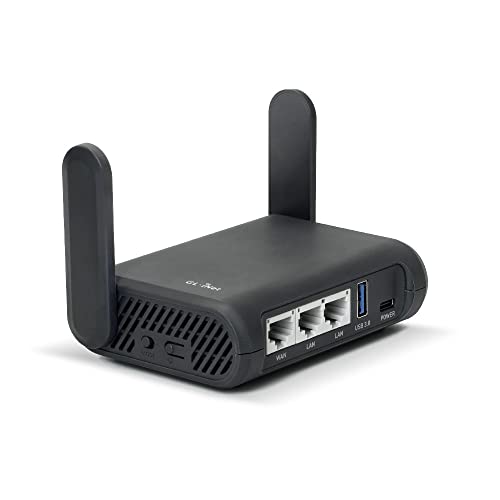
- Turns a wired or public wireless connection into a network shared by your own devices
- Includes WireGuard, OpenVPN, policy routing, and an optional VPN kill switch
- Runs OpenWrt and supports network storage, encrypted DNS, guest Wi-Fi, and AdGuard Home
A travel-style VPN router can be useful for a single screen or temporary network, but check the job against the hardware: supported protocol, realistic encrypted throughput, captive-portal handling if you travel, policy routing, and what its optional kill switch blocks.
For the exact installation paths, use the smart-TV VPN setup guide. This buying guide is about deciding which path deserves the subscription.
Follow One Stream Through Both Setups
Launch a stream with a native VPN app. The TV encrypts covered traffic to the VPN server. The home router and internet provider see that encrypted connection rather than each covered destination. Other household devices keep their normal routes. The VPN provider receives the TV's traffic as it leaves the tunnel, and the streaming service sees the VPN server's public IP address.
Now route the TV through a VPN-enabled router. The TV first sends ordinary local traffic to the router; the router places the covered traffic in its encrypted connection. The internet provider again sees the tunnel to the VPN server, the VPN provider occupies the same intermediary position at the tunnel's far end, and the streaming service again sees the server's IP. Other devices follow whatever router policy you wrote—direct, protected, or accidentally protected.
Same outside address. Different place to install, update, test, and break the route.
That difference matters at 9 p.m. when the app disappears after an update or somebody resets the router.
Decide What Failure Should Look Like
A green “connected” badge describes now. It says nothing about the next Wi-Fi interruption, television restart, app crash, or server change.
Run a harmless failure test. Start playback, interrupt the VPN, and watch. Does the video stop? Does the tunnel reconnect? Does playback continue over the household's ordinary public address?
A kill switch or blocking router rule can prevent silent fallback. It can also stop movie night. If location or network privacy is the reason for using the tunnel, blocking may be the honest behavior. If the VPN is merely an optional route test, automatic fallback may be acceptable.
Choose before the failure. Then make the behavior visible enough that another person in the house can recover without dismantling the network.
If the TV app uses split tunneling, keep its bypass list small and visible. An intentional exception uses the ordinary route even while the VPN badge remains green.
Play the Program, Not the Speed Test
Connect to a nearby server first. Play the same high-resolution title with and without the VPN at the hours you normally watch. Record startup delay, buffering, resolution drops, audio synchronization, and whether the connection survives after the TV sleeps.
A short download test can miss all of that.
When both routes buffer, test the television's ordinary network before blaming the VPN. Roku's connection-check guidance separates the device's link to the router from its ability to reach the internet. That distinction applies beyond Roku: weak Wi-Fi and a bad VPN route are different failures.
When only the VPN route struggles, try another nearby server or a supported protocol. If the same provider is fast on a new phone but slow through the router, the router's processor or configuration may be the limit.
Don't buy from a single “4K ready” badge. Keep the service only if the full playback test agrees.
Add a Gateway Without Replacing Good Wi-Fi
Sometimes the existing router covers the home well but can't run a VPN client. Replacing the entire Wi-Fi system to change one television's route is an expensive detour.
A separate wired gateway can sit between parts of the network and handle OpenVPN or WireGuard while the current access point continues providing Wi-Fi.

- Sits on a wired network as a dedicated gateway for OpenVPN or WireGuard traffic
- Can run VPN client and server roles together for remote access and protected outbound browsing
- Has no Wi-Fi radio, making it best for pairing with an existing router or access point
That design still needs a map. Which Ethernet port or Wi-Fi network leads through the gateway? Which devices bypass it? Does the television keep the same local access to casting and remote-control devices?
Test local discovery after routing changes. Roku warns that some full-routing VPN apps on a phone can prevent the Roku mobile app from seeing the device. The television can have working internet while the phone remote fails because the two devices no longer share the route they need for local communication.
That's not a streaming-speed problem. It's a network-boundary problem.
Don't Let Smart DNS Borrow the VPN's Name
Smart DNS can be useful on a television that accepts custom DNS settings but can't run a VPN app. It may redirect selected lookups involved in region-sensitive services.
It doesn't create the same route.
With Smart DNS, the TV sends supported lookups through the DNS service, while ordinary connections still leave through the household's public IP unless the service changes a particular flow. The internet provider still carries those connections on the normal route. The streaming service can still receive the household address for ordinary traffic.
With a VPN, covered TV traffic enters an encrypted tunnel to the VPN server. The internet provider sees the tunnel, the VPN provider receives traffic at the other end, and the streaming service sees the VPN server's address.
Smart DNS changes selected directions. A VPN changes the covered route.
Use the VPN versus Smart DNS comparison before treating one as a lighter version of the other. Also save the TV's automatic DNS setting so you can restore it.
Check the Company Behind the TV App
Television convenience doesn't erase the VPN trust question. The provider can see the source connection reaching its server and may handle destinations, DNS, timestamps, diagnostics, account data, or device identifiers depending on its design.
Read what it says it collects and retains. Look for independent evidence that covers the service and infrastructure you plan to use—not a vague security badge beside a TV icon.
The TV platform and streaming app can still collect their own account, advertising, viewing, and device data. A VPN changes the network route. It doesn't sign you out, delete viewing history, or stop tracking inside an account.
Streaming access can change too. Services can block VPN server addresses or use account, device, and location signals beyond IP. Test the exact service, account, TV, and country during the evaluation window. No VPN controls the streaming platform's next detection change.
The streaming service's terms still apply. Changing the route doesn't grant permission beyond them.
Buy the Setup You Can Undo From the Sofa
Before paying for a year, hand the remote to somebody else.
Ask them to tell whether the VPN is on, switch back to the normal route, restart the television, and recover after a failed connection. If the answer requires your laptop, three admin pages, and a diagram nobody else can find, that complexity belongs in the buying decision.
The best smart-TV VPN isn't the fastest app on your phone. It's the service that fits the operating system on the wall, holds a real stream, exposes its failure behavior, and gives the household a route it can understand.
Buy for that screen.
Not for the badge.