
How to Set Up a VPN on Your Router Without Moving Everything
- Find “VPN Client,” Not a VPN-Shaped Word
- Decide Who Enters Before Opening the Tunnel
- Preserve the Network That Works Today
- Add a Gateway Without Replacing Good Wi-Fi
- Download the Configuration From Its Owner
- Import One Profile and Read the Result
- Prove the Route From Both Sides
- Policy Routing Is Split Tunneling for a Household
- Make Tunnel Failure Choose a Known Outcome
- A Travel Router Makes the Boundary Visible
- DNS and IPv6 Need Their Own Route Test
- Router Speed Is Not the Number on the Box
- Keep Updates and Recovery Boring
- Expand Only What You Can Still Explain
A router VPN can protect the television, console, and every other device that can't run an app. It can also send the bank login, work laptop, and smart thermostat through one bad rule. Broad coverage is the benefit. Broad failure is the price.
Start with one laptop behind the router.
On the ordinary route, the ISP carries its connections toward each destination. HTTPS may protect supported contents in transit, while the ISP can still see useful connection metadata and destination IPs. A website sees the home's public IP plus the account and browser signals.
Turn on the router's VPN client for that laptop alone.
The ISP sees an encrypted connection to the VPN server. The VPN provider handles the next hop. The website sees the server's public IP—and the same account and browser. Every other device stays on the ordinary route until this test passes.
Find “VPN Client,” Not a VPN-Shaped Word
The router must act as a VPN client. That means it initiates an outbound tunnel and sends selected local traffic through it.
VPN passthrough isn't client support. It merely allows another device behind the router to establish its own tunnel. VPN server mode is different too: it accepts incoming connections so you can reach the home network from elsewhere.
Check the exact model and hardware revision. One retail name can cover several processors, memory sizes, and firmware branches. A support page for revision 2 doesn't prove revision 1 has the same feature.
Look for a protocol your VPN provider offers for manual configuration, usually WireGuard or OpenVPN. Then check whether the router supports per-device or policy-based routing, a failure block, DNS control, IPv6, and enough VPN throughput for the job.

Decide Who Enters Before Opening the Tunnel
Draw three columns: VPN, direct, and undecided.
The television or console without a native app may belong under VPN. A bank app that challenges unfamiliar locations may belong under direct. A managed work laptop should follow employer policy rather than a household guess.
Routing every device is easy to describe and hard to live with. Streaming services can object to known VPN addresses. Local printers and casting may disappear. Smart-home devices may expect a regional cloud endpoint. Background traffic uses the tunnel whether it benefits or not.
Start with one test device. Expand a known-good rule instead of moving the whole house and then hunting for the thing that broke.
Preserve the Network That Works Today
Export a router configuration backup if the manufacturer provides that feature, and verify that you know how to restore it. Separately record the WAN, DNS, Wi-Fi, local subnet, DHCP, and administration settings.
Update the router with official firmware before importing the VPN profile. Use a wired administration connection during major changes so a Wi-Fi restart doesn't strand you outside the control panel.
Know the physical recovery process before touching third-party firmware. Don't flash an image because a forum post says the model is “basically the same.” A failed router upgrade can take the entire home offline.
Use a unique administration password, store it securely, and disable remote administration unless you deliberately need it and can secure it. The VPN won't compensate for an exposed router account.
Add a Gateway Without Replacing Good Wi-Fi
If the ISP owns the main gateway or the current Wi-Fi is working well, a separate VPN gateway can serve selected devices behind it.

- Sits on a wired network as a dedicated gateway for OpenVPN or WireGuard traffic
- Can run VPN client and server roles together for remote access and protected outbound browsing
- Has no Wi-Fi radio, making it best for pairing with an existing router or access point
Brume 2 is a wired VPN gateway with no Wi-Fi radio. Pair it with an existing router, switch, or access point; don't buy it expecting a new wireless network to appear.
Plan the topology. A second router can create double NAT, conflicting local subnets, duplicate DHCP service, and confusing administration paths. Give each device one clear job and keep local address ranges distinct.
Before adding the VPN, prove that a test laptop can reach the internet and the administration page through the new gateway. Then add the tunnel.
Download the Configuration From Its Owner
Sign in to the VPN provider's official site and find its router or manual-configuration area. Download the profile for one nearby server and one protocol.
Use router-specific credentials when the provider issues them. Don't paste the ordinary account password into a field that expects a separate service username, private key, or certificate.
Keep private keys and configuration files out of shared folders, screenshots, and public support posts. A redacted error report can still leak a hostname, username, internal address, or key block if you don't inspect it.
Read what the profile does with DNS and IPv6. The tunnel file may define only the encrypted peer and routes; the router firmware may control resolver assignment, failure behavior, and policy separately.
Import One Profile and Read the Result
Open the router's local administration interface. Add a VPN client profile, import the official configuration, enter the required credentials, and save without changing unrelated settings.
Connect and inspect the status or log. A successful handshake, current transfer counters, and an assigned tunnel address are stronger evidence than a toggle that remains blue.
Apply the policy to the single test laptop. Keep another device direct so you can reach documentation if the protected route stops.
Name the profile by provider, server, and protocol. “VPN 1” becomes useless the moment a second profile exists.
Prove the Route From Both Sides
On the test laptop, record the public IP before connecting. Enable the router policy and check again. The second result should match the VPN exit, not the home connection.
Follow the protected path: the device sends covered traffic to the router; the ISP sees the VPN-server connection; the provider forwards the request; the destination sees the VPN IP.
Follow the direct control device: it sends traffic to the ordinary WAN; the ISP sees its service connections; the VPN provider receives none of that traffic; the destination sees the home IP.
If both devices show the same address, the policy isn't doing what the columns promised.
Policy Routing Is Split Tunneling for a Household
Some routers route by device. Others can use destination networks, ports, domains, or named policy groups. Each extra condition creates another assumption to test.
Keep the first rule legible: television through VPN, work laptop direct. Avoid a clever maze of overlapping exceptions until the simple version is stable.
Local traffic needs its own decision. A protected phone may still need to see a printer or casting receiver on the LAN. Create only the narrow local exception required; don't turn “allow printer” into “allow all direct internet.”
Document the rule in plain language beside the router setting. An address list nobody can map back to devices isn't documentation.
Make Tunnel Failure Choose a Known Outcome
Disconnect the VPN profile using the router's documented control while the test device makes a harmless repeating request.
With fail-open routing, the request takes the ordinary WAN: the ISP sees the destination connection, the VPN provider receives none of it, and the destination sees the home IP. With fail-closed routing, the request stalls: the ISP receives no direct service request, the provider receives nothing until reconnection, and the destination receives nothing during the gap.
Choose the behavior that matches the goal. A television may tolerate direct fallback; a device intended never to expose its ordinary address may not.
Test startup too. Some controls block only after a working tunnel drops. Reboot the router and see what the protected device does before the VPN has established its first connection.
A Travel Router Makes the Boundary Visible
A separate Wi-Fi name can make policy easier: join “Home-VPN” for the protected route and “Home-Direct” for the ordinary one. The same pattern travels well when hotel devices need one prepared network.
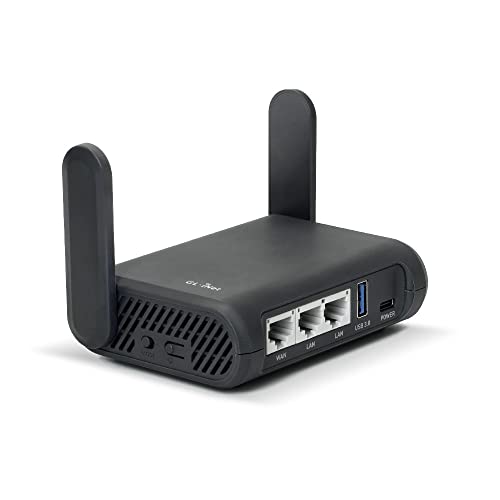
- Turns a wired or public wireless connection into a network shared by your own devices
- Includes WireGuard, OpenVPN, policy routing, and an optional VPN kill switch
- Runs OpenWrt and supports network storage, encrypted DNS, guest Wi-Fi, and AdGuard Home
Slate Plus can run compatible OpenVPN or WireGuard profiles, repeat hotel Wi-Fi, and apply a VPN policy to devices behind it. Captive portals still sit before the tunnel. Complete the venue's legitimate sign-in, then connect the VPN and verify the public IP.
Test its physical or software mode controls at home. A switch labeled “VPN” is helpful only when everyone knows whether the other position means direct internet, no internet, or another function.
The travel router doesn't protect a phone that leaves its Wi-Fi and switches to cellular. Device behavior still defines the real boundary.
DNS and IPv6 Need Their Own Route Test
An IPv4 result can show the VPN address while IPv6 uses the ordinary WAN. A DNS lookup can leave through an ISP resolver even when the webpage itself takes the tunnel.
Run IPv4, IPv6, and DNS checks on the protected device. Compare the answers with the provider's documented design.
If IPv6 bypasses the tunnel, route it through a supported IPv6 tunnel or block it for protected devices, following the router's documentation.
A custom resolver isn't automatically a leak if the request still travels through the encrypted tunnel. An ISP resolver reached over the direct WAN may defeat the privacy goal. Path matters as much as the resolver name.
Don't stack provider DNS, router filtering, and browser encrypted DNS blindly. Several privacy controls can send lookups along different paths or make resolution fail in ways that are hard to explain.
Router Speed Is Not the Number on the Box
The large Wi-Fi number on a retail box describes radio link capacity under particular conditions. It doesn't state how fast the processor can encrypt and route VPN traffic.
Test download, upload, latency, packet loss, and sustained streaming through a nearby server. Compare the same provider and protocol on a capable computer.
If the native app is fast and the router is slow, the router may be the bottleneck. WireGuard often performs efficiently, but hardware acceleration, firmware, and implementation matter. Measure both protocols only when the router supports them correctly.
Don't weaken encryption to chase the direct line rate. Use native apps for high-speed devices or choose hardware with documented VPN throughput.

- Pairs Wi-Fi 6 and dual 2.5-gigabit ports with enough capacity for a device-heavy household
- Runs WireGuard and OpenVPN directly on the router so compatible devices can share one VPN policy
- Supports AdGuard Home and OpenWrt customization, with an initial firmware update recommended
Flint 2 is a higher-performance home router with compatible WireGuard and OpenVPN support. It can serve a busier network than a small travel unit, but real throughput still depends on firmware, protocol, server, route, and local conditions.
Keep Updates and Recovery Boring
Router VPN profiles don't always update like consumer apps. Server addresses, certificates, keys, and provider instructions can change.
Set a reminder to check router firmware and stored profiles. Review logs for repeated failures or silent fallback. Back up a known-good configuration after the tests pass.
Write down how to disable the VPN without losing router access. Keep the direct recovery device or network available, and make sure another trusted person can understand the labels.
The U.K. National Cyber Security Centre's VPN guidance treats forced routing, split tunneling, captive portals, configuration, and failure behavior as separate choices. A home router deserves the same discipline.
Expand Only What You Can Still Explain
Add the television after the laptop passes. Add the console after the television. Check local devices, bank logins, work tools, calls, streaming, and smart-home control each time.
Skip router VPN setup when the hardware lacks client support, the processor can't meet the performance need, or you can't create the required boundaries. Native apps are easier to update, inspect, and disable per device.
Return to the opening house. The television can use the tunnel. The bank login can stay direct. The work laptop can follow company policy. None has to inherit a route simply because the router can reach it.
The best router VPN doesn't cover everything. It covers exactly what you intended—and fails exactly the way you tested.