
How to Set Up a VPN on Fire TV—and Know It Works
- Choose the Route Before You Reach for the Remote
- Confirm the App Supports This Fire TV
- Install From the Store, Then Use the Safer Sign-In
- Make the First Connection Boring
- Prove the Public IP Changed
- Test an Episode, Not a Trailer
- Automatic Connection Needs a Failure Plan
- Split Tunneling Puts Two Routes Behind One Screen
- Fix the Fire TV Layer Before Rebuilding the Network
- A Home VPN Router Moves Control Off the Television
- Hotel Wi-Fi Adds a Portal Before the Tunnel
- Keep Access and Permission Separate
- Finish With the Same Three Views
Installing a VPN on Fire TV takes minutes. Proving the streaming app actually uses it takes longer. A green VPN screen can sit beside an excluded app, a stale connection, or buffering that has nothing to do with encryption. Setup ends when you can explain the route—not when the button says Connected.
Open a streaming app on a Fire TV Stick without the VPN.
The home router and internet provider carry that connection toward the service. HTTPS may protect video and account contents in transit, while the network can still see useful connection metadata and destination IPs. The streaming service sees the home's public IP plus its own signed-in account, device, and app signals.
Now turn on a full-device VPN app.
Covered Fire TV traffic enters an encrypted connection to the VPN server. The router and ISP see that tunnel instead of the same destination pattern. The VPN provider handles the next hop. The streaming service sees the server's public IP—but it still receives the account, device, and app signals.
That's what you're about to install and test.
Choose the Route Before You Reach for the Remote
There are three sensible setups.
A native Fire TV app is simplest when the VPN publishes one for the exact device and region. The television controls the connection, so changing a server or checking status happens on the same screen as playback.
A VPN router covers Fire TV models without a supported app and can apply one policy to several streaming devices. The tradeoff is distance: the TV may say nothing about a tunnel controlled somewhere else.

- Pairs Wi-Fi 6 and dual 2.5-gigabit ports with enough capacity for a device-heavy household
- Runs WireGuard and OpenVPN directly on the router so compatible devices can share one VPN policy
- Supports AdGuard Home and OpenWrt customization, with an initial firmware update recommended
Connection sharing from a computer can work as a temporary test, but it adds another device, route, power state, and failure point. Use the computer's documented sharing method and verify the Fire TV's public IP afterward.
Don't sideload a phone APK merely because Fire OS and Android share history. A touch-screen app may not support the remote, television layout, current Fire TV software, or automatic updates.

Confirm the App Supports This Fire TV
Check the VPN provider's current Fire TV page. Look for supported models, minimum software version, account requirements, device limits, available protocols, split tunneling, and kill-switch behavior.
Then open the Amazon Appstore listing on the Fire TV. Verify the provider name and logo against its official site. An app with a familiar icon and unfamiliar publisher gets no password.
Amazon notes that the Fire TV experience differs across devices. Menu labels can change, so follow the screen in front of you rather than forcing an old screenshot to match.
Update Fire TV before troubleshooting the VPN. Amazon's current navigation places software updates under Settings and either My Fire TV or Device & Software, depending on the device. Keep enough free storage for the system and app to update cleanly.
Install From the Store, Then Use the Safer Sign-In
From the Fire TV home screen, use Find to search Amazon Appstore apps. Type the VPN's exact name, open the verified listing, and install it.
Launch it from the apps area or Settings under Applications. The path varies by Fire TV generation, but the installed-app screen should show the publisher's app—not a browser download or file manager copy.
If the app displays a short activation code or QR code, complete it on a trusted phone or computer already signed into the provider. Confirm the web address before entering credentials.
If direct sign-in is required, use a unique password and avoid reading it aloud into voice input. Enable the strongest multifactor option the VPN account supports, while confirming the television's activation flow won't lock you out.
Sideloading shifts update and verification responsibility to you. If the provider doesn't officially distribute a Fire TV build, the router route is usually easier to maintain than an unofficial APK.
Make the First Connection Boring
When Fire TV asks whether the app may create a VPN connection, approve it only for the verified app you just installed.
Choose a nearby server for the first test. It usually gives video traffic a shorter route and lower latency than a distant endpoint.
Wait for a stable connected state, return to the home screen, and leave the VPN running in the background. Open one harmless app or browser page before starting a long stream.
Don't choose another country by habit. Use a different location only for a lawful, permitted reason, and remember that streaming services can apply account, device, and regional terms independently of the connection.
Prove the Public IP Changed
If the VPN app shows connection details, note the server and public IP it reports. Then open a reputable IP-check page in a supported Fire TV browser.
Test twice: once without the VPN and once after connecting. The first result should match the ordinary home route; the second should match the VPN location.
Compare the observers.
On the direct route, the ISP sees the service connection, the VPN provider sees nothing, and the test site sees the home public IP. On the protected route, the ISP sees the VPN-server connection, the provider handles the test request, and the site sees the VPN public IP. Fire TV and its signed-in services still retain device and account information in both cases.
A different streaming catalog isn't a route test. App caches, account regions, device settings, licensing, and location permission can all change what appears.
Test an Episode, Not a Trailer
Play a full episode or a long high-resolution video. A twenty-second preview won't expose slow starts, resolution drops, buffering cycles, or audio drift.
If playback struggles, change one thing. Try another nearby VPN server, restart the streaming app so it opens a fresh connection, and test again. Then compare the same title with the VPN disconnected.
If the provider recommends a different Fire TV protocol, change it, restart the streaming app, and repeat the same test.
Fire TV includes a network-status tool on compatible devices. Amazon's current instructions say to open Settings, select Network, and press Play/Pause on the remote; some models also offer a speed test or advanced details.
Weak Wi-Fi, congestion elsewhere in the home, a busy streaming service, or limited Fire TV storage can imitate a VPN performance problem. Test the ordinary connection before blaming the tunnel.
Automatic Connection Needs a Failure Plan
Enable automatic connection when Fire TV should use the tunnel after restart. Then reboot and verify it actually reconnects before the streaming app sends traffic.
A kill switch can prevent covered traffic from quietly using the home route after the VPN fails. Television implementations vary, so check the provider's current Fire TV documentation and test the result.
Interrupt the connection using a provider-documented method. With fail-open behavior, the streaming request goes direct: the ISP sees the service, the VPN provider receives none of that direct traffic, and the service sees the home IP. With fail-closed behavior, the request stalls until the protected route returns.
Don't use sensitive account activity for the test. A harmless IP page and ordinary playback are enough.
Split Tunneling Puts Two Routes Behind One Screen
Some Fire TV VPN apps let selected streaming services bypass the tunnel. That can solve a compatibility or performance problem without disconnecting every app.
It also makes the green status incomplete.
The included app enters the VPN: the ISP sees the tunnel, the VPN provider forwards its traffic, and the service sees the VPN IP. The excluded app goes direct: the ISP sees that service connection, the VPN provider receives none of it, and the service sees the home IP.
Test one included and one excluded app. Record why each exception exists, and remove it when the reason disappears.
Fix the Fire TV Layer Before Rebuilding the Network
If the VPN won't connect, confirm Fire TV's ordinary network first. Restart the app, try another nearby server, and restart Fire TV.
Clear the VPN app's cache if it becomes unresponsive. Clear its data only when you're ready to activate or sign in again. Reinstall only from the verified Amazon Appstore listing.
Check storage and install current system and app updates. Amazon's Wi-Fi troubleshooting also recommends its network diagnostics, restarting Fire TV, and restarting a router you control before considering a factory reset.
If every app buffers without the VPN, solve Wi-Fi or internet performance. If only the protected route fails, focus on the VPN server, app, protocol, or account. If only one streaming service fails, don't tear down a tunnel that works everywhere else.
A Home VPN Router Moves Control Off the Television
A router VPN helps when the Fire TV has no supported app, several media devices need the same route, or you want one centrally tested policy.
The router must support a protocol and profile the provider supplies. Its processor needs enough throughput for the video quality you expect. Selective routing should send only the intended television or services through the tunnel.
A home router such as the Flint 2 can run compatible OpenVPN or WireGuard profiles and apply policy to devices behind it. That doesn't make setup automatic. Update it, identify the Fire TV by a stable reservation or documented policy, and test direct, protected, and tunnel-failure states.
The Fire TV may report ordinary Wi-Fi while the router's VPN is down. Check the router dashboard and the public IP from the television; neither screen alone tells the whole story.
Hotel Wi-Fi Adds a Portal Before the Tunnel
A travel router can give Fire TV and other devices one private local network, then connect upstream to hotel Wi-Fi. The hotel captive portal often has to be completed before the VPN tunnel can start.
Confirm the venue's network name. Complete only its legitimate portal, connect the router VPN, and verify the Fire TV's public IP before signing into streaming services.
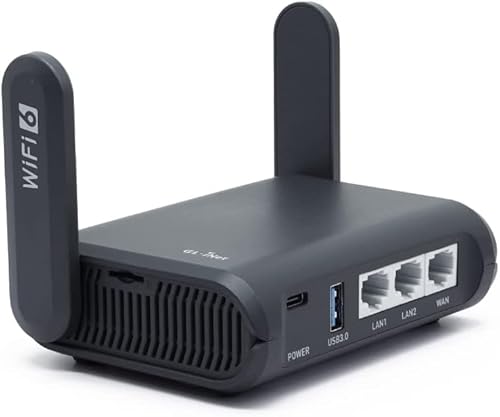
- Builds a private Wi-Fi 6 network for laptops, phones, streaming devices, and other travel gear
- Runs OpenVPN or WireGuard for compatible VPN services, with performance suited to faster connections
- Handles hotel captive portals and includes a configurable switch for VPN or network-wide filtering
Slate AX supports compatible OpenVPN and WireGuard profiles and is built for public or hotel connections. It also adds another system that can fail. Learn its direct and VPN modes at home, label any physical switch, and test what happens when the upstream Wi-Fi drops.
Don't place a router next to the Fire TV only to hide it behind the television. Dense electronics and a weak hotel signal can hurt the connection before the VPN gets involved.
Keep Access and Permission Separate
A VPN can change the public IP seen by a streaming service. It can't carry a subscription, rewrite an account region, grant a license, or override terms and local law.
Access may change without warning as the VPN provider, server address, Fire TV app, or streaming service changes. Treat compatibility as a live test, not a permanent feature.
Install from authorized sources, use content you're entitled to view, and don't treat a successful catalog change as proof that the route is secure—or permitted.
Finish With the Same Three Views
After every material update, repeat the route check, a full playback test, and one failure test.
The ISP should see the VPN-server connection for covered traffic. The VPN provider should receive the protected route. The streaming service should see the VPN public IP while still seeing the account and device it serves. Excluded apps should show the direct path you chose.
That's a Fire TV VPN setup you can trust: official app, known route, stable playback, tested failure, and no mystery exceptions. The installation was the easy part. The explanation is the proof.