
Netflix VPN: A Working Tunnel Can Still Hit Stop
- Check the Plan Before You Chase Servers
- The Proxy Error Is a Routing Clue
- Test the Stream, Not the Speed-Test Number
- Split Tunneling Means Netflix Leaves the Tunnel
- The Phone and Television May Be on Different Roads
- Travel Changes More Than the IP
- Fix a Wrong Direct Location at the Source
- Keep a Direct Route Ready
A green VPN icon can sit beside a Netflix proxy error. Nothing contradictory happened. The tunnel may be encrypted and the exit address may be real while Netflix refuses that address, that plan, or that kind of program. The VPN worked; the stream didn't.
Open Netflix on your home connection. Your internet provider sees a connection to Netflix and its metadata, while HTTPS protects the account and video contents.
Netflix sees your home public IP plus the account, device, app, and other signals it uses to deliver the service.
Turn on a full-device VPN. Your provider now sees an encrypted connection to the VPN server.
The VPN company becomes the intermediary: it can observe destination IPs plus connection timing and volume while HTTPS shields account and video contents. Netflix sees the server's public IP—but your plan, account country, device, and app haven't moved.
One location signal changed. Netflix still gets to decide whether it accepts the route.
Check the Plan Before You Chase Servers
Netflix's current rules draw two clear lines: VPN connections aren't supported for live events or an ad-supported viewing experience. If either describes what you're trying to watch, server roulette is the wrong repair.
Check the account plan and the program first. For an ad-supported experience, Netflix may show error E121 and tell you to turn off the VPN or proxy. A live event can reject a VPN even when ordinary on-demand video worked minutes earlier.
For other on-demand viewing, a VPN connection may work, but that isn't a promise that one server will keep working.
Use the service under the terms and location rules that apply to your account. A changed public IP doesn't create a subscription, expand a plan, or turn unsupported viewing into supported use.

The Proxy Error Is a Routing Clue
Netflix error E106 says a VPN or proxy appears to be active. The cause may be obvious—a VPN app is connected—or buried in a router, browser extension, custom DNS service, security suite, or managed profile.
Start with a clean comparison. Close Netflix completely, disable the VPN or proxy, reopen the app, and play the same title on the same device and network. If the error disappears, you've isolated the route without erasing settings you may need later.
Netflix's official VPN and proxy troubleshooting says to turn those services off and try again. It also points to Fast.com: run the test on the same network, select “Show more info,” and note the country beside Client.
If that country doesn't match your physical location after every VPN and proxy is off, don't keep swapping VPN servers. Record the result, restart the modem and router, and work through the network-location steps before resetting anything you can't reconstruct.
Test the Stream, Not the Speed-Test Number
A nearby VPN server usually gives traffic a shorter detour than a distant one. That's a useful starting point for privacy, but a fast burst doesn't prove Netflix will sustain a full program.
Play the resolution you normally use for at least fifteen minutes. Watch startup time, buffering, resolution drops, seeking, subtitles, audio sync, and recovery after the device sleeps. Then repeat the same title on the direct route.
Change one variable at a time. If you switch the VPN server, television, Wi-Fi band, and Netflix profile together, the next result can't tell you which change mattered.
A home router with VPN policy controls can put selected devices on different routes. That can be useful when one laptop needs the tunnel but the television needs the ordinary connection. It isn't a Netflix access guarantee, and it deserves a labeled, tested bypass before the next movie night.

- Pairs Wi-Fi 6 and dual 2.5-gigabit ports with enough capacity for a device-heavy household
- Runs WireGuard and OpenVPN directly on the router so compatible devices can share one VPN policy
- Supports AdGuard Home and OpenWrt customization, with an initial firmware update recommended
If both routes buffer, investigate the connection itself. Pause large downloads, test Ethernet where practical, move closer to the access point, and compare another supported device. A blocked VPN exit and congested home Wi-Fi are different failures.
Split Tunneling Means Netflix Leaves the Tunnel
When Netflix works directly but rejects the VPN, a narrow split-tunnel rule can exclude only the Netflix app. Covered browsing and messaging keep using the VPN; Netflix takes the ordinary route.
That creates two observer stories. For the excluded Netflix stream, the local network or ISP sees a direct Netflix connection and Netflix sees the normal public IP. For a covered browser tab, the local observer sees the VPN tunnel, the VPN provider forwards the traffic, and the destination sees the VPN exit IP.
The Netflix traffic isn't private through the VPN. It works precisely because it bypasses the tunnel.
Keep the exception narrow. Excluding an entire browser because one Netflix tab fails also sends banking, search, and every other tab outside the VPN. Test the rule after app and operating-system updates, then remove it when you no longer need it.
Router policy routing can make the same choice for a television that has no VPN app. Document which device uses which route. An old exception is easy to forget because the VPN icon on another screen still looks reassuring.
The Phone and Television May Be on Different Roads
Casting doesn't always send the video's bytes from the phone to the television. The phone may act as a remote while the television or streaming stick makes its own Netflix connection.
That means the phone can show a VPN address while the television uses the ordinary home IP. Or a router rule can tunnel the television while the phone stays direct. Test the device that actually fetches the program, not merely the device holding the play button.
Put both devices on the same intended network during diagnosis. Check for a VPN client, proxy, custom DNS, or policy rule on the router and receiving device. Smart DNS can change how some location lookups resolve, but it doesn't create an encrypted full-device VPN tunnel.
Don't remove a managed work profile to fix personal streaming. Use a personal device or ask the administrator which network controls must remain.
Travel Changes More Than the IP
Netflix says people can use the service while traveling, but the available shows, maturity ratings, downloads, audio, and subtitles can differ by country. Some payment methods and ad-supported plans also have location limits.
Follow Netflix's current guidance for watching away from home before departure. Update the app, sign in, check account recovery, and test any downloaded titles while you still have your normal connection.
A travel router can give a laptop, phone, and streaming device one network you control on hotel Wi-Fi. It can also tunnel all three down the wrong route with one setting. Update its firmware, confirm compatibility with your VPN provider, complete the hotel's sign-in page, and test direct and tunneled modes separately.
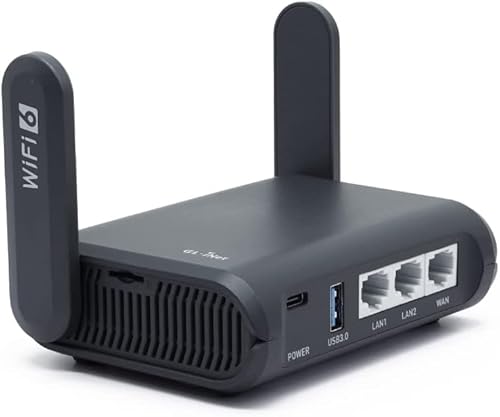
- Builds a private Wi-Fi 6 network for laptops, phones, streaming devices, and other travel gear
- Runs OpenVPN or WireGuard for compatible VPN services, with performance suited to faster connections
- Handles hotel captive portals and includes a configurable switch for VPN or network-wide filtering
The router doesn't change Netflix's plan rules or guarantee that a hotel television will accept casting. It gives you network control. Keep those jobs separate.
Fix a Wrong Direct Location at the Source
If Fast.com reports the wrong country on the direct connection, save the Client country and public IP privately. Netflix recommends contacting the internet provider after its network-reset steps so the provider can confirm whether the address and DNS location match your home.
Don't post the full IP in a public forum. Give it only to the provider or support channel that needs it.
If the reported location is right and Netflix still fails, the problem may be the app, account, device, plan, or service—not a hidden VPN. Follow the error code instead of rebuilding the whole network.
Keep a Direct Route Ready
Netflix playback doesn't audit a VPN's logging policy, leak protection, or kill switch. A stream that starts proves only that Netflix accepted that route at that moment. Review the provider separately and run IP and DNS leak checks for the privacy claims you actually care about.
The reverse is true too. A proxy warning doesn't prove the tunnel's encryption failed. It means Netflix doesn't want to serve that connection under the current conditions.
So keep one clean fallback: the ordinary supported route. Check the plan, identify which device makes the connection, compare direct and tunneled playback, and stop when Netflix tells you the VPN isn't supported. The VPN can keep doing its privacy job elsewhere. It doesn't need to win an argument with the play button.