
The Netflix VPN or Proxy Error Is a Routing Clue
- The Error Is About the Route Netflix Sees
- A Two-Minute Test Separates Device From Network
- Hidden VPNs Often Live Outside the Netflix App
- Split Tunneling Is a Direct Route With a Label
- Restore Defaults Before You Factory-Reset Anything
- Rebooting Helps Only When the Sequence Is Controlled
- A Router Needs a Named Escape Route
- Call the ISP With Evidence, Not a Mystery
- Fix the Route, Then Rebuild Privacy Deliberately
The movie is ready, the internet works, and Netflix says you're using a VPN or proxy. Don't start changing five settings at once. The warning is a clue about the route Netflix sees, not proof that your television is broken.
You press Play on the living-room TV and get error E106—or the message asking you to turn off a VPN or proxy. Netflix's current troubleshooting page says VPN services can make a device or network appear to connect from somewhere other than its physical location.
It recommends turning them off if the problem persists. The fastest diagnosis is a clean direct-route test.
If Netflix plays without the VPN, you've isolated the likely cause. If it still fails, stop swapping VPN servers and inspect the device, DNS, router, or ISP path instead.
The Error Is About the Route Netflix Sees
On a direct connection, the TV sends traffic through the home router and ISP toward Netflix. The ISP carries that destination traffic, and Netflix sees the public IP assigned to the connection. With a VPN, the covered traffic first travels through an encrypted tunnel to the VPN server. Netflix sees the server's address and apparent location instead.
A proxy or Smart DNS setup changes a narrower part of the route. A browser proxy may cover only that browser, while custom DNS changes who answers name lookups without automatically creating a full-device encrypted tunnel. The label in the error message doesn't tell you which layer is active.
Netflix also says VPNs aren't supported for live events or an ad-supported experience. Check the account plan and the thing you're trying to watch before treating the warning as a technical puzzle. No server change can turn an unsupported viewing mode into a supported one.

A Two-Minute Test Separates Device From Network
First, turn off the VPN, proxy, or Smart DNS setting you knowingly enabled. Fully close Netflix, reopen it, and try the same title.
During this test, don't change the account country or household settings, add another VPN, try a public proxy, reinstall the app, or reboot the router. Those moves solve different problems or muddy the result.
Next, use a browser on the same network and open Fast.com. After the test, choose Show more info and note the country and public IP beside Client. Netflix says that a mismatch between that country and your physical location likely means a VPN is active on the device or network.
Repeat from another device on the same Wi-Fi. If both report the unexpected country, look upstream at the router, DNS, security software, work profile, or ISP. If only one does, keep the investigation on that device.
That's the useful split: one screen or the whole network.
Hidden VPNs Often Live Outside the Netflix App
Closing a familiar VPN window may not remove the route. Antivirus suites can include a VPN that starts automatically. Phones and laptops may carry work profiles. Browsers can run proxy extensions. A router can tunnel every attached device even when the TV has no VPN app at all.
Read the route from the outside in. Check the TV or streaming box, then its network settings, then the router. Ask whether another household member changed DNS or enabled a whole-network VPN. On a work-managed device, don't remove profiles you don't own; ask the administrator.
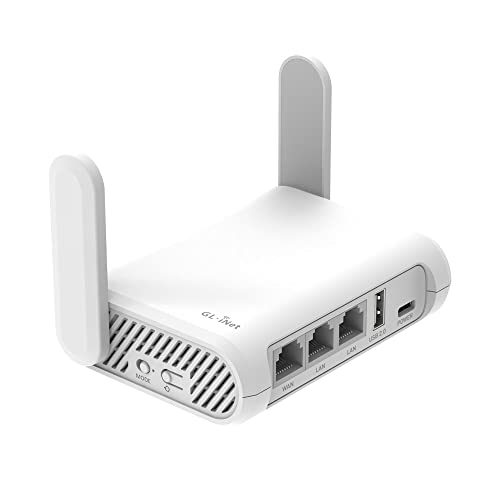
- Creates your own dual-band network from a hotel, café, Ethernet, or public Wi-Fi connection
- Includes OpenVPN and WireGuard support for compatible VPN subscriptions
- Lets you assign the side switch to VPN control after configuring it in the admin panel
A travel router can deliberately separate a private hotel network from the venue's Wi-Fi, but it also becomes another place a VPN profile can hide. If you use one, name its direct and VPN modes clearly. The useful feature during an error is a known bypass, not a promise that a particular streaming route will work.
Casting adds another pair of devices. The phone may choose the show while the television or streaming box makes the playback connection. Test Netflix in the phone's browser, directly on the TV, and then through casting; the point at which the error returns identifies which device still has the masked route.
Split Tunneling Is a Direct Route With a Label
If the VPN app supports split tunneling on the device, you may be able to exclude Netflix. The Netflix app then uses the ordinary ISP route while covered apps keep using the encrypted VPN connection.
Mirror the observers before you flip the switch. For the excluded Netflix app, the Wi-Fi network or ISP resumes its direct view of those connections, the VPN doesn't carry them, and Netflix sees the household or local public IP. For an included browser, the network sees a tunnel to the VPN, the VPN forwards its traffic, and destinations see the VPN server's IP.
That may be the right trade when playback matters more than masking the TV's route. It isn't “Netflix through the VPN but undetected.” Test the exact app, because exclusions can be platform-specific, and a system-wide kill switch may block excluded traffic when the tunnel is down.
Restore Defaults Before You Factory-Reset Anything
Netflix's own sequence moves from disabling the VPN to resetting network settings and restoring modem or router defaults. Start with the reversible pieces.
Record custom DNS addresses, proxy fields, VPN profiles, and router policy rules before changing them. Return DNS to automatic or to the ISP's expected setting, then retest.
Custom DNS can remain active after a VPN app closes, and router-level DNS applies to devices that never installed that app. Secure DNS inside a browser is another separate control, though it won't explain a TV app unless the network setting also changed.
Use a full factory reset only when you understand what it erases. It can remove the Wi-Fi name, password, ISP credentials, parental controls, port forwards, and every route you forgot someone depended on. A clean Netflix test isn't worth breaking the rest of the house by surprise.
Rebooting Helps Only When the Sequence Is Controlled
Power cycling can clear stale network state, but “restart everything” is not a diagnosis. Netflix's general network instructions say to turn off the playback device, unplug the modem and router for 30 seconds, reconnect the network equipment, wait, and then turn the device back on.
Do that after restoring the route you intend to test. Let the modem finish connecting before the router, and let the router settle before the TV starts.
Then run the same test again and compare the client country and IP with the result you recorded earlier. If the public IP changes and playback returns, the reset may have cleared stale ISP or address-classification state.
If the address doesn't change but playback returns, a local setting or cached route may have been the issue. Don't promise yourself that repeated reboots will produce a new IP; ISP assignment policies vary.
A Router Needs a Named Escape Route
A home gateway can place app-less televisions behind a VPN, but a single whole-network rule makes the proxy error everybody's problem. The TV can't close a tunnel running on another box.
Someone has to change the gateway policy. Policy routing is safer to operate: assign the TV a stable local address, create a clear direct rule, and keep the VPN route for devices that need it.
Verify DNS follows the same decision. A direct TV route paired with VPN DNS—or the reverse—can leave a confusing hybrid.

- Sits on a wired network as a dedicated gateway for OpenVPN or WireGuard traffic
- Can run VPN client and server roles together for remote access and protected outbound browsing
- Has no Wi-Fi radio, making it best for pairing with an existing router or access point
A small wired gateway can add routing control without replacing the household's wireless system, but it also adds another administration surface. Document which cable, profile, and toggle returns the network to direct service. Test that recovery path before a live event, not while everyone is staring at the error screen.
Call the ISP With Evidence, Not a Mystery
If the VPN is off, network settings are back at their intended defaults, and the same test still reports the wrong country, collect the client country and public IP from a device on the same network. Netflix explicitly asks for those details before contacting the ISP.
Tell the ISP which devices fail, whether they use Wi-Fi or Ethernet, what you turned off, and whether the reported country matches your physical location. Ask the ISP to confirm that the address belongs to your connection and that the route uses its expected DNS. If the information matches, Netflix says the ISP may need to work with Netflix directly.
Don't post the full IP in a public support thread. It isn't a password, but it identifies the connection involved and rarely helps strangers diagnose private routing.
Fix the Route, Then Rebuild Privacy Deliberately
Once Netflix plays, re-enable one privacy control at a time. Turn on the security suite without its VPN, or the VPN without custom DNS, and retest after each change.
If split tunneling is the chosen fix, confirm other sensitive apps still use the tunnel. Keep the result that you can explain: direct for Netflix, VPN for selected apps, or direct for the whole device.
The goal isn't to defeat an endless error by spinning through addresses. It's to know which system changed the route—and how to return to a working one without guessing.